


What Is Text-to-Speech? A Complete Guide for Educators
Understand how text-to-speech technology works, why AI voices have transformed classroom accessibility, and how to start using TTS with your students today.




Text-to-speech is one of the most impactful accessibility technologies available in classrooms today. Understanding what text-to-speech is, how it works, and who it helps is the first step toward making your classroom more inclusive. Whether you teach students with dyslexia, English Language Learners, or any child who processes information better through listening, TTS technology can transform how they engage with written content.
What Is Text-to-Speech Technology?
Text-to-speech (TTS) is technology that converts written text into spoken audio. A TTS system reads digital text from websites, documents, PDFs, or any on-screen content and produces a voice output that sounds like a human reading it aloud. Modern text-to-speech uses artificial intelligence and neural networks to generate natural, expressive voices far removed from the robotic sounds of earlier systems.
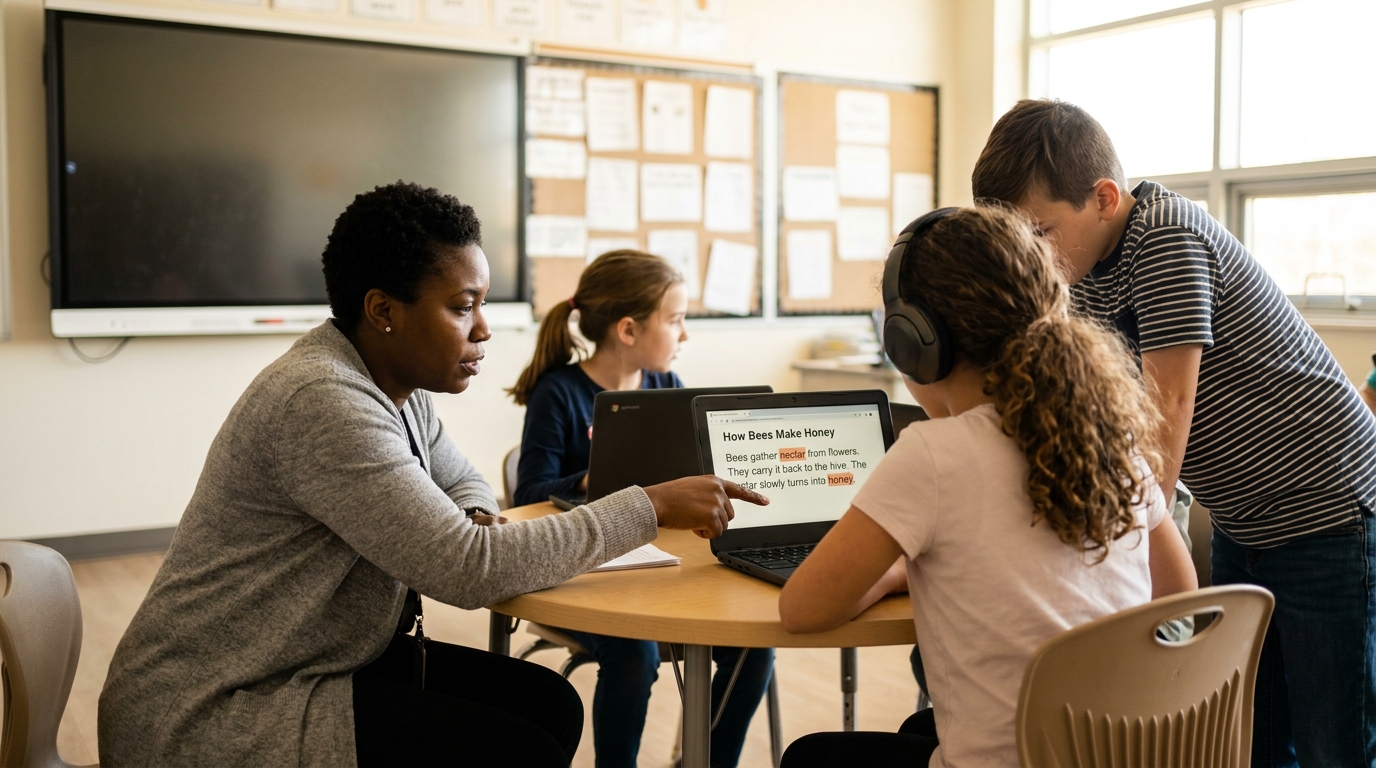
In education, TTS tools serve as assistive technology to help students access written content they might otherwise struggle with. A student with dyslexia can have an assignment read to them. An English Language Learner can hear correct pronunciation. A student with a visual impairment can navigate digital materials through audio.
How Modern Text-to-Speech Works
Early text-to-speech systems used concatenative synthesis, stitching together pre-recorded speech fragments. The result was functional but stilted. Words sounded choppy and unnatural, and students often found the experience distracting rather than helpful.
The Shift to AI-Powered Neural Voices
Today's TTS technology uses neural text-to-speech (NTTS), powered by deep learning models trained on thousands of hours of human speech. These models learn the patterns of natural speech including rhythm, intonation, emphasis, and pacing and generate audio that sounds remarkably human. Tools like Mote use these AI voices to deliver a listening experience that keeps students engaged rather than pulling them out of their learning flow.
How the Conversion Process Works
When a TTS system processes text, it follows three core steps. First, text analysis parses the input to understand sentence structure, abbreviations, and numbers. Second, linguistic processing determines pronunciation, emphasis, and sentence flow. Third, audio synthesis generates the speech waveform using the neural voice model. This happens in milliseconds, producing real-time audio as students read.
Which Students Benefit From Text-to-Speech?
Students With Dyslexia and Reading Difficulties
Dyslexia affects approximately 1 in 5 students. TTS allows these students to access grade-level content without being limited by their decoding ability. Research from the International Dyslexia Association shows that multimodal reading, seeing text while hearing it read aloud, improves both comprehension and retention for students with reading difficulties.
English Language Learners
For ELL students, hearing correct pronunciation alongside written text builds vocabulary and phonemic awareness simultaneously. Text-to-speech tools with multilingual support, like Mote's 80+ language voices, allow students to hear content in both their home language and English, bridging the comprehension gap.
Students With Visual Impairments
TTS is a core assistive technology for students with low vision or blindness. While full screen readers provide comprehensive navigation, lightweight TTS tools integrated into the browser give students with partial vision the ability to have specific content read aloud on demand.
Students Who Learn Better by Listening
Not every student who benefits from TTS has a diagnosed disability. Some students are simply stronger auditory processors. Providing text-to-speech as a universal option rather than only as an accommodation normalises its use and removes stigma, benefiting the entire classroom.
Text-to-Speech in Google Classroom
Most K-12 schools use Google Workspace for Education, meaning students spend their time in Google Classroom, Docs, Slides, and Forms. The most effective text-to-speech tools work natively inside these platforms with no separate apps, no copy-pasting, and no context switching.
Mote is a Chrome extension designed specifically for education that brings text-to-speech directly into Google Workspace. Students can highlight any text in a Google Doc or Classroom assignment and hear it read aloud instantly with natural AI voices. Unlike general-purpose TTS tools, Mote was built from the ground up for classrooms. It is FERPA and COPPA compliant, supports managed Chromebook deployment, and offers a free trial for educators (90 days for students invited to a class).
Getting Started With Text-to-Speech
Implementing text-to-speech in your classroom does not require a large budget or technical expertise. A Chrome extension like Mote can be installed in minutes, deployed across managed devices through Google Admin Console, and used by students immediately. Start by introducing TTS during reading assignments and let students discover how it supports their own learning. Explore the best text-to-speech Chrome extensions for education and find the right fit for your classroom.

.png)


.png)


.png)
