



How to Use Read Aloud in the Classroom: A Teacher's Guide
Practical strategies for integrating text-to-speech into daily classroom routines across independent reading, assessments, and writing.




Read aloud in the classroom is one of the most practical ways to support diverse learners during everyday instruction. Whether students are working through a science article, reviewing a peer's writing, or taking a quiz, text-to-speech gives them on-demand reading support without pulling the teacher away from other students.
With tools like Mote, read aloud is no longer limited to the teacher at the front of the room. Students control their own experience -- choosing when to listen, adjusting speed, and replaying difficult passages -- directly inside Google Docs and Classroom assignments.
When to Use Read Aloud
Read aloud works best integrated into existing routines rather than treated as a separate activity.
Independent Reading Time
During silent reading, students who struggle with decoding activate Read Aloud to keep pace with grade-level texts. This is especially valuable in content areas like science and social studies, where reading levels often exceed what struggling readers can access independently.
Assessment Accommodations
For students with IEPs or 504 plans specifying TTS, Read Aloud provides compliant support during quizzes and tests without needing a separate testing room or human reader.
Writing and Revision
Students hear their own writing spoken back, catching errors, awkward phrasing, and missing words that are hard to spot silently. A simple self-editing strategy across all grade levels.
ELL Language Development
English Language Learners hear correct pronunciation modeled consistently. Read Aloud exposes students to natural speech patterns while following the written text, building vocabulary and fluency simultaneously.
Teacher Feedback Review
When teachers leave written comments in Google Docs, students use Read Aloud to hear feedback spoken aloud, ensuring it is fully understood.
Classroom Management Tips
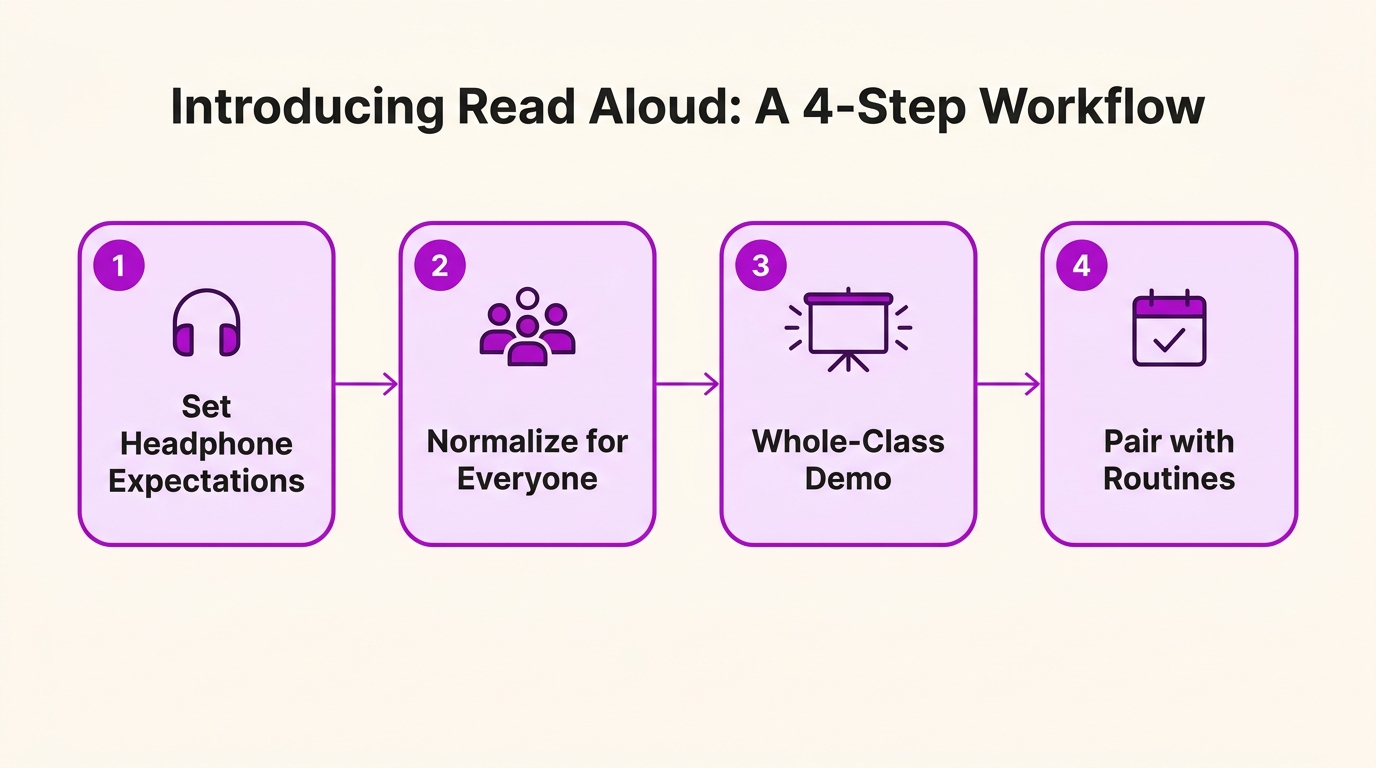
Introducing TTS takes a small amount of planning. These strategies help teachers manage the transition.
Set Headphone Expectations
Establish a routine: headphones on when Read Aloud is active, off for group discussion. Many schools provide inexpensive classroom headphone sets.
Normalize the Tool for Everyone
Avoid framing Read Aloud as only for struggling students. When available to the whole class, students who need it most use it without stigma. Research from CAST shows universal access to assistive tools benefits all learners.
Start with a Whole-Class Demo
Open a Google Doc on the projector, activate Mote, and demonstrate selecting text, choosing a voice, and adjusting speed. Students see exactly what the tool does before trying it on their own devices.
Pair with Existing Routines
During a daily reading block, offer three choices: read independently, read with a partner, or read with Mote. This gives students agency without creating a new workflow.
What Teachers and Students Say
Teachers report Read Aloud reduces hands raised during independent work. Students who previously needed constant support now work independently, freeing teachers for small-group instruction.
Students describe Read Aloud as making reading feel less stressful. Knowing they can replay a sentence or slow down a tricky paragraph reduces pressure.
Mote: Read Aloud Built for Google Workspace
Mote brings Read Aloud, Screen Mask, Highlighter, Dictionary, and Translation into a single Chrome extension for Google Workspace classrooms. FERPA and COPPA compliant, works on any Chromebook, with a 30-day free trial for educators (90 days for students invited to a class). Add Mote from the Chrome Web Store.




.png)

.png)
