
Back to school 2026

Everything new in Mote

Here is everything that changed while you were away on summer holiday, in 11 updates — open any one to read it in full.
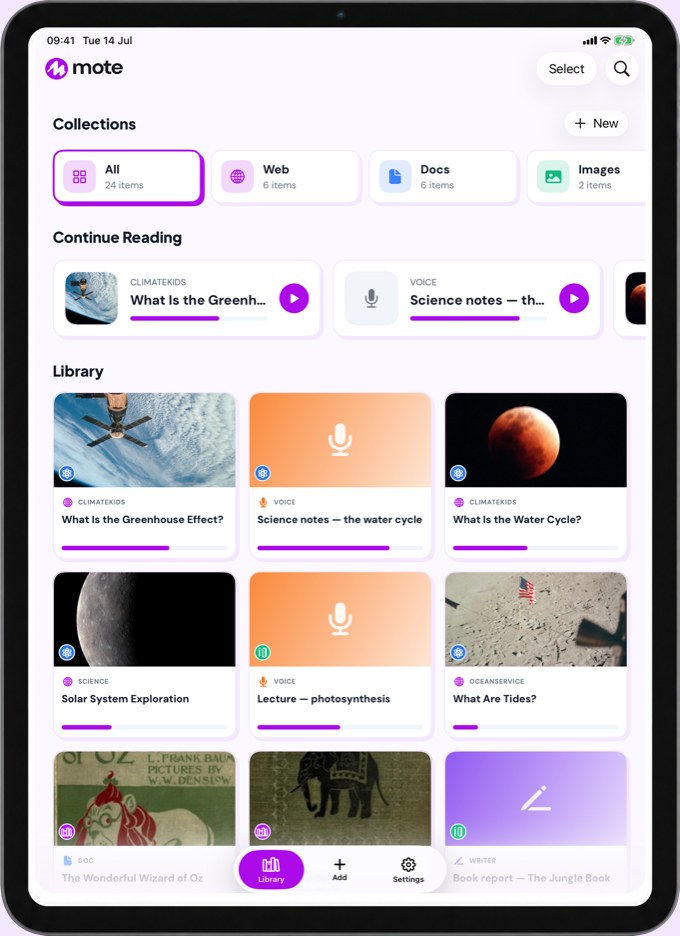

Mote for iOS on an iPad, showing the Library of saved reading and voice notes

Mote for iOS

1 update
Cleared for Takeoff: Mote for iOS Officially Launches
Students on iPads now get full access to the Mote literacy tools — read aloud, text prediction, speech-to-text, translation and more.
Cleared for Takeoff: Mote for iOS Officially Launches

Mote for iOS is out of beta and live on the App Store, running on iPad and iPhone. Schools and classes on iPads get the Mote experience too, separate from the Chrome extension. Share a webpage or document with Mote, or scan text straight from a worksheet, and have it read aloud. Or write in Writer, with word prediction built in.

Try it now:
  1. Download Mote from the App Store
  2. Sign in with Google
  3. Open Image Reader and photograph a worksheet
  4. Drag the corners to select the part you want read
  5. Tap Read Selected Area and follow along
  6. Save it to a Collection to come back to later

Mote PDF

2 updates
Accessibilize Any PDF
Mote PDF runs OCR on scanned worksheets and photocopied PDFs to accessibilize them, so every Mote tool works — highlighting, Read Aloud, the Dictionary and Translation.
Accessibilize Any PDF

Mote PDF now runs OCR on scanned and photocopied PDFs — the ones where you try to highlight the text and nothing happens — and accessibilizes them so students can work with them properly. Once it has, the whole toolkit works: Play Page reads the document aloud, the Dictionary looks up any word, Translation handles a passage, and the Screen Mask cuts the glare. Students can highlight, annotate and type straight onto the page, and it all saves into the file so it travels with the work when they hand it back.

Try it now:
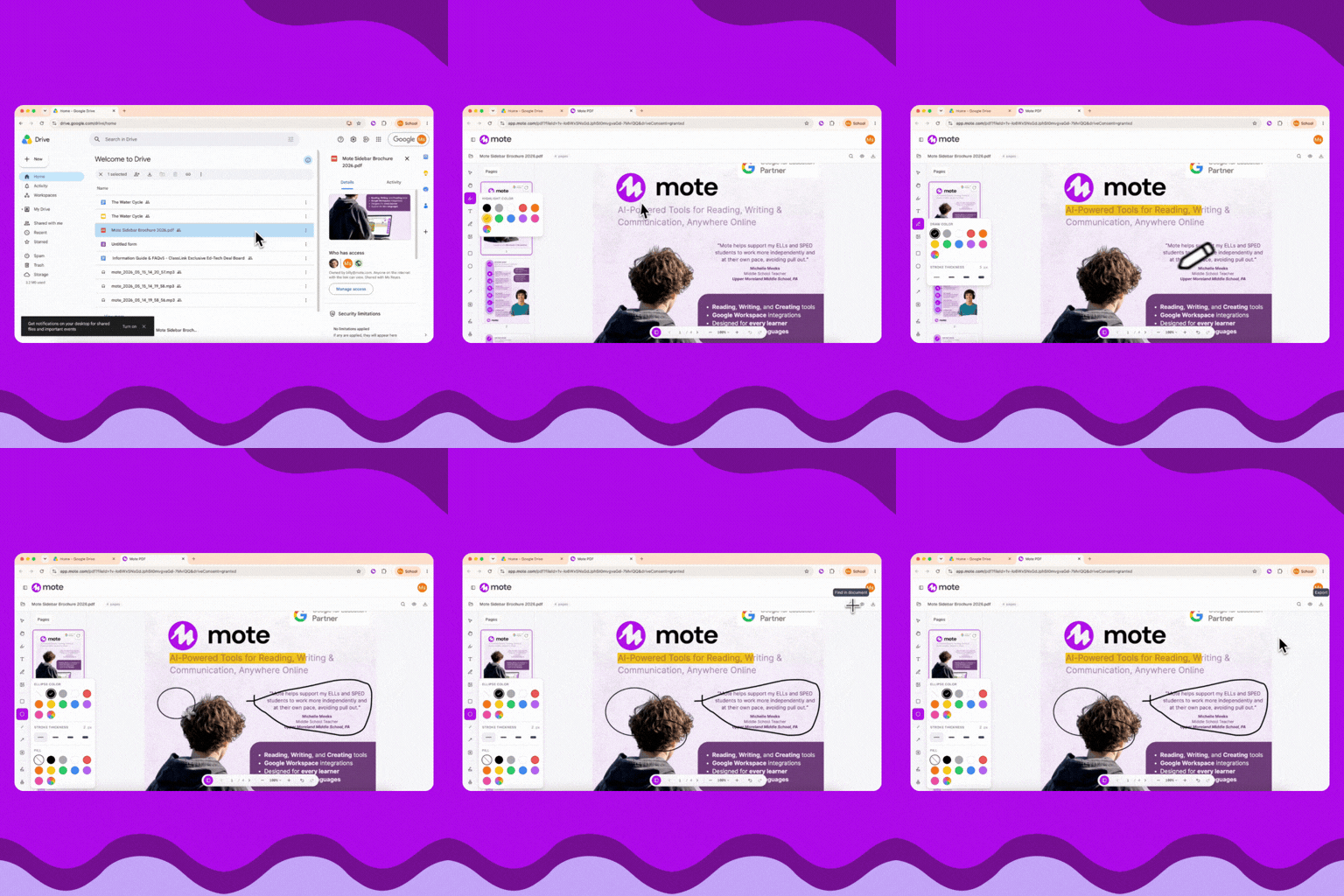
  1. Go to Google Drive
  2. Right-click a scanned PDF
  3. Click Open with Mote
  4. Click Make readable and choose the document’s language
  5. Try highlighting some text
  6. Click Play Page to hear it read aloud
  7. Save the document so the text sticks
Access, Edit and Save Any PDF
Mote PDF lets you access, edit and view any PDF, then save it straight back to Google Drive. Add the Mote PDF Workspace app for one-click access from Drive.
Access, Edit and Save Any PDF

Mote PDF lets you access, edit and view any PDF, then save it back to Google Drive with your changes in it. Use the in-built toolkit to mark it up, or the Mote Sidebar for reading and writing tools. Add the Mote PDF Workspace app and it is one click from any file in Drive.

Try it now:
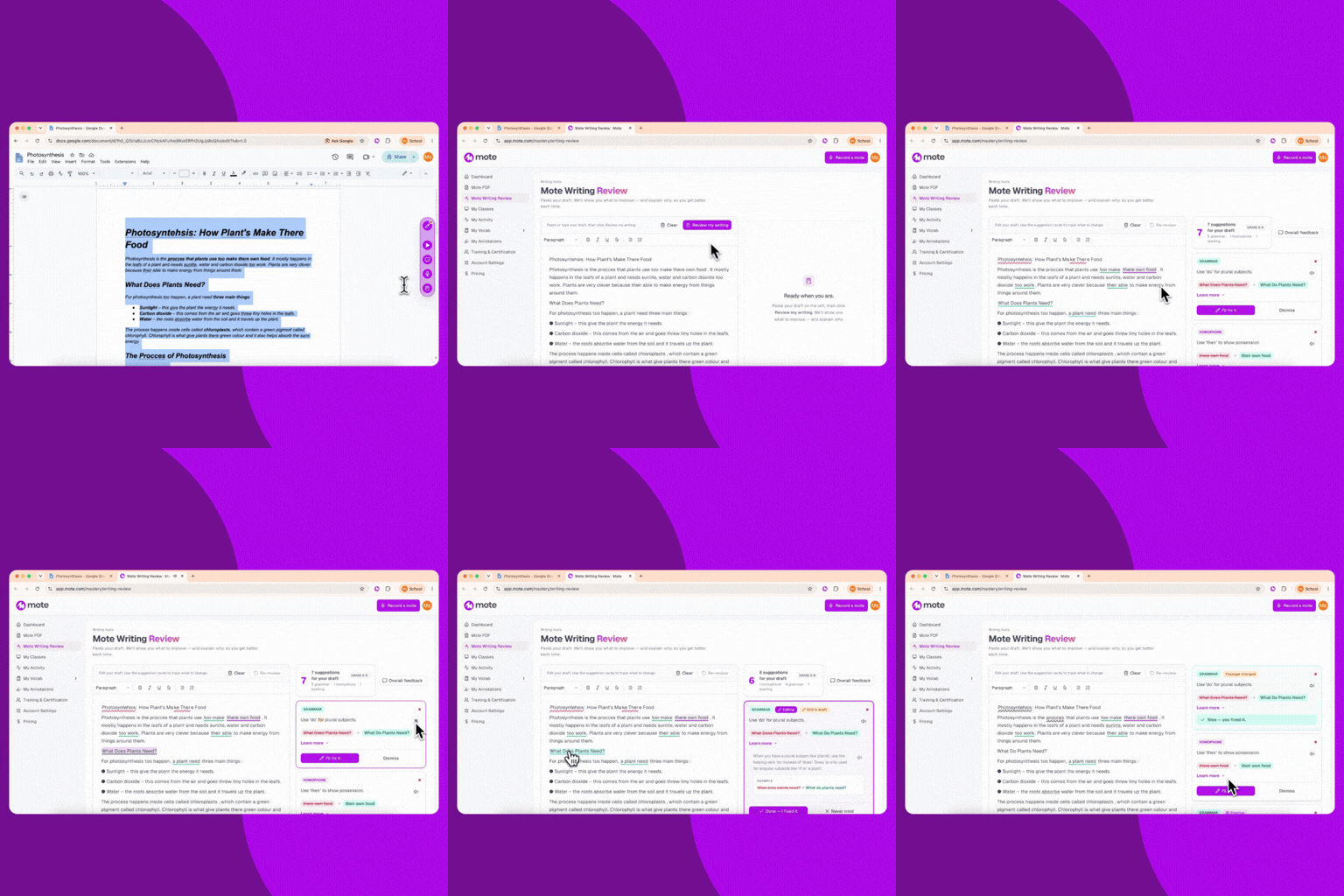
  1. Go to app.mote.com/pdf
  2. Drop a PDF file in
  3. Click the highlighting tool
  4. Highlight some text
  5. Click Export and save it to Google Drive
  6. Open it from Drive to see your changes
Writing Support That Teaches, Not Corrects
Writing Review finds the spelling, homophone and grammar issues in a student's writing. It doesn't fix them, it explains the rule behind each one and leaves the fixing to the student.
Writing Support That Teaches, Not Corrects

Writing Review finds the spelling, homophone and grammar issues in a student’s writing. It doesn’t fix them, it explains the rule behind each one and leaves the fixing to the student — so they understand the changes they’ve made. Play an explanation aloud and Mote leans on the words being compared, so the difference between their and there is one you can hear.

Try it now:
  1. Open a Google Doc with some writing in it
  2. Highlight the text you want to review
  3. Open the Mote Sidebar and go to Review my writing
  4. Click Review my Writing
  5. Click I’ll fix it on one of the suggestions, and make the change
  6. Click Done — I fixed it to check your correction
Text Prediction, Only When You Need It
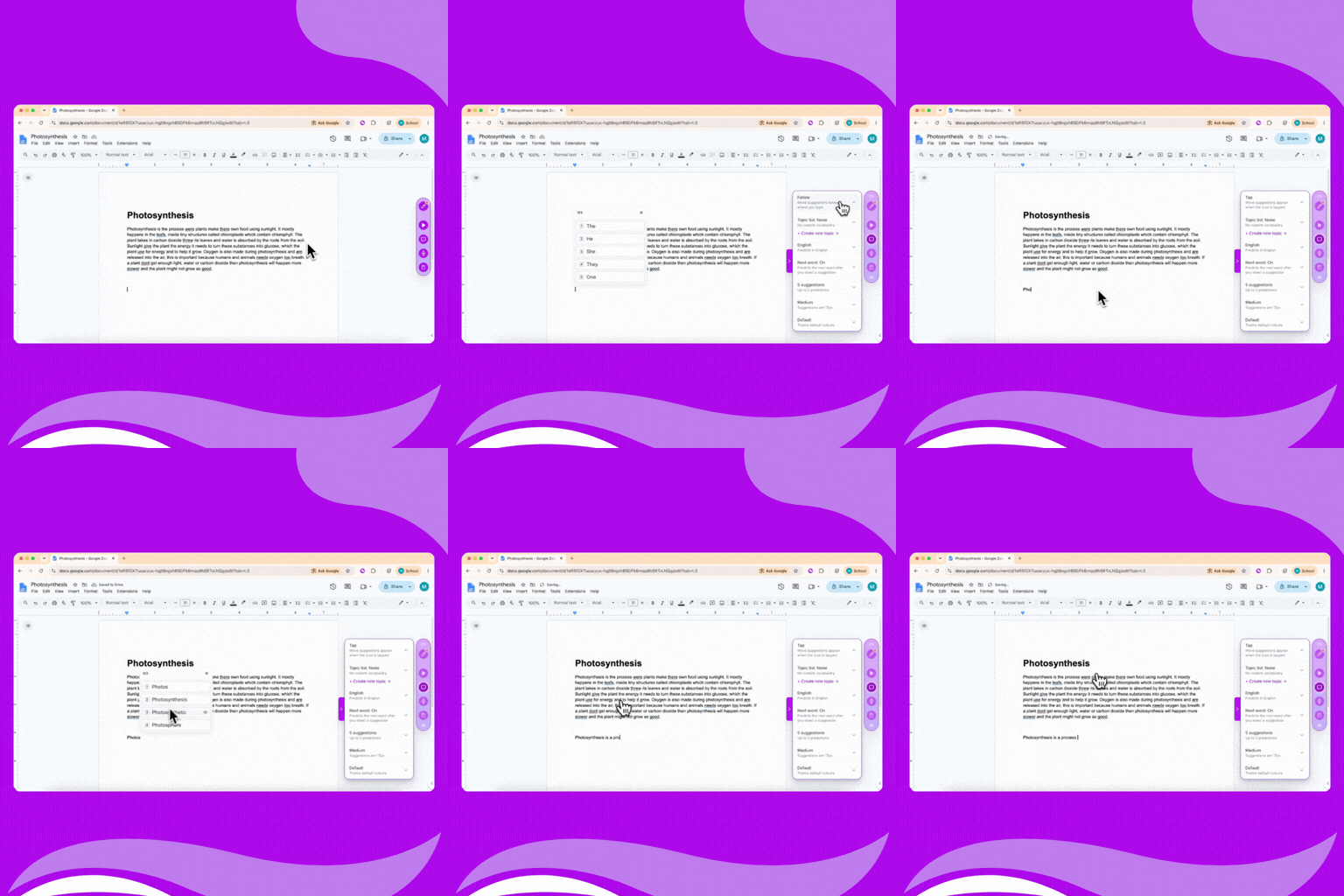
Tap mode keeps word suggestions hidden until a student requests them, so there's no list following their cursor while they write.
Text Prediction, Only When You Need It

In Tap mode nothing appears while a student types — the suggestions stay hidden until they tap the icon below their cursor, so there is no Text Prediction list travelling across the page as they write. Fixed and Follow work as they always have.

Try it now:
  1. Open the Mote Sidebar in a Google Doc
  2. Click the Text prediction icon
  3. Set the mode to Tap
  4. Start typing, then tap the icon below your cursor
  5. Pick a word
Read Aloud, Wherever You Are
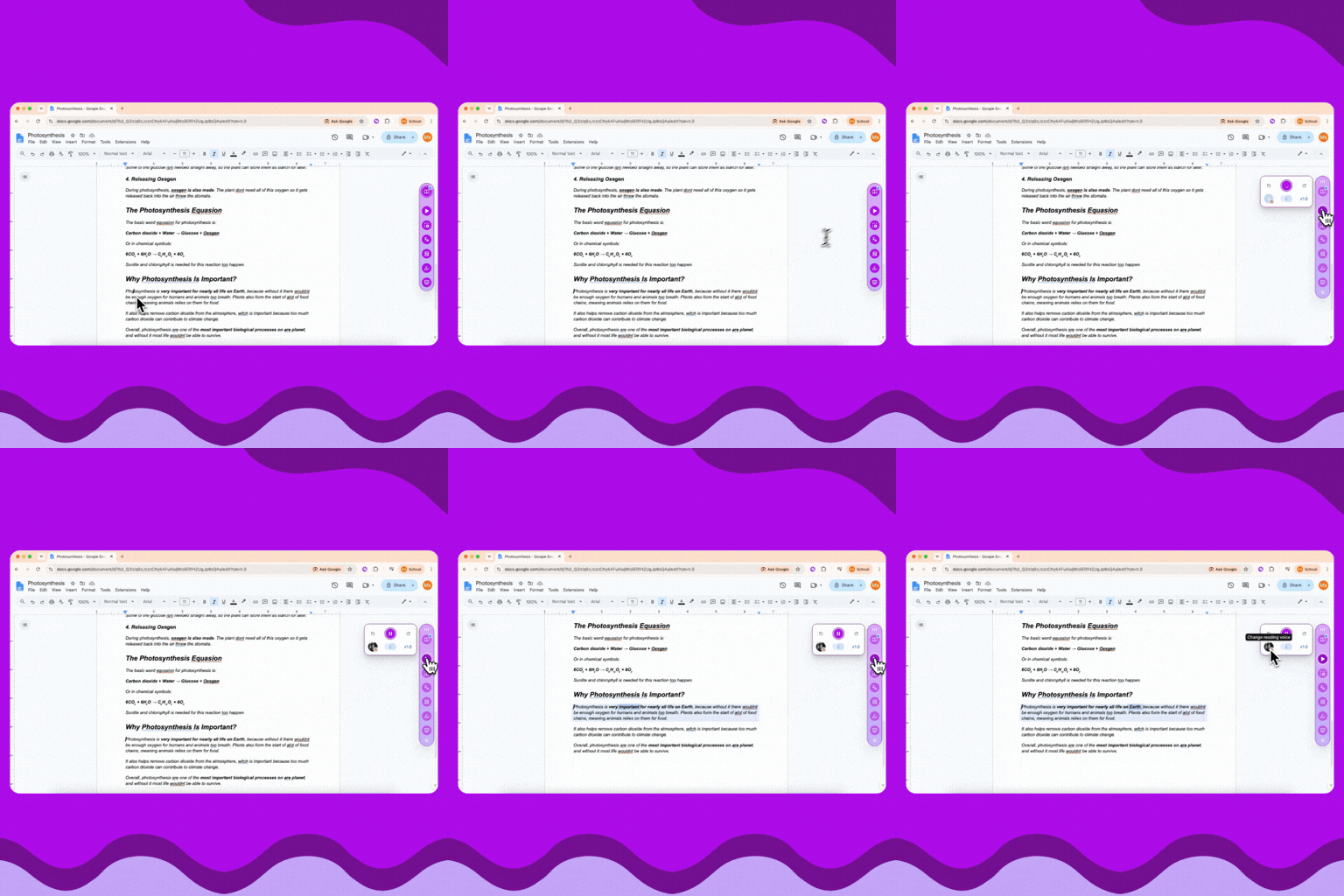
Press Play Page in a Google Doc and Read Aloud starts from the paragraph your cursor is in — no more sitting through everything you've already read.
Read Aloud, Wherever You Are

Press Play Page in a Google Doc and Read Aloud now starts from the paragraph your cursor is in, rather than going back to the top every time. Click into the part you want to hear, and that is where it begins.

Try it now:

  1. Open a Google Doc
  2. Click into the middle of the document
  3. Open the Mote Sidebar and go to Reading Mode
  4. Click Play Page
Mote Speaks Your Language
All of Mote is now fully translated into French, Spanish, Arabic and Mandarin Chinese. Pick your language once and the Sidebar, your dashboard and the features inside them all follow.
Mote Speaks Your Language

All of Mote is now fully translated into French, Spanish, Arabic and Mandarin Chinese. Pick your language once and the whole product follows — the Sidebar, your dashboard, and every button, label and prompt in between.

Try it now:

  1. Go to Account Settings at mote.com/account/profile
  2. Pick your language from the language selector
  3. Open the Mote Sidebar
  4. Move through Reading, Writing and Creating modes
Syd Gets You Started with Teacher Tools
Learn how to get the most out of Mote as a teacher with a guided walkthrough. Syd takes you through four lessons on your own dashboard.
Syd Gets You Started with Teacher Tools

Mote’s teacher tools now come with a guided walkthrough. Syd takes you through four lessons on your own dashboard — creating a class, reading your Class Dashboard, setting Student Feature Access, and building a Mote Vocab list — highlighting each step as you go.

Try it now:
  1. Go to your Mote dashboard
  2. Click Get Started with Mote’s Teacher Tools
  3. Pick a lesson
  4. Follow the steps
Mote Vocab Lists Are Now Yours to Edit
Mote Mastery is now Mote Vocab, and we've improved Vocab Lists too. On any list you can remove a word, rewrite a definition that doesn't fit your class, or add your own.
Mote Vocab Lists Are Now Yours to Edit

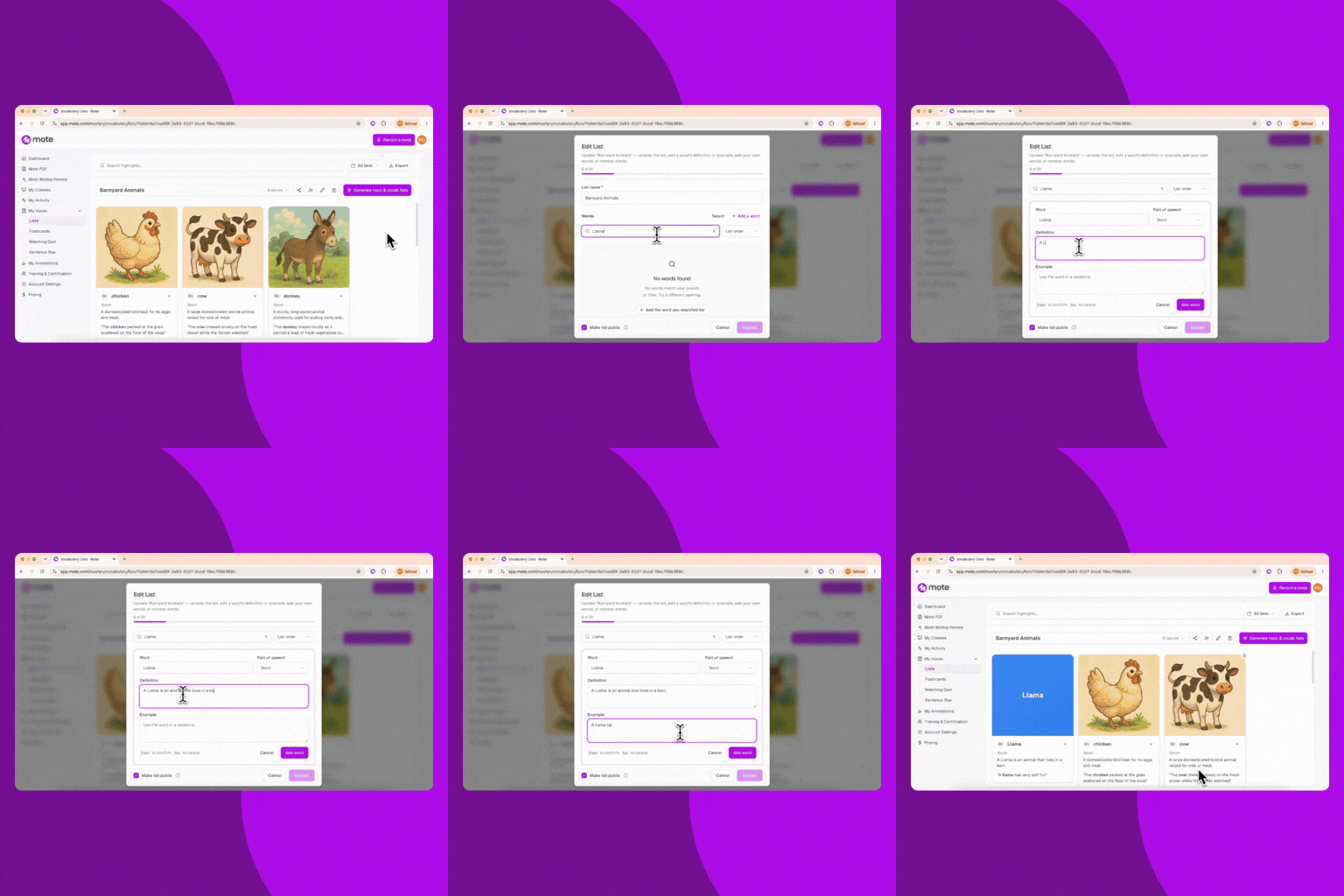
Mote Mastery is now Mote Vocab, in your dashboard under My Vocab. Vocab Lists are editable now: remove a word you don’t want, rewrite a definition that doesn’t fit your class, or add words of your own that the generator missed.

Try it now:
  1. Open Mote Vocab from your dashboard under My Vocab
  2. Open a list and click the edit button
  3. Type the word you want to add, and pick its part of speech
  4. Write its definition and an example of how you might use it
  5. Click Add word
Assessment Mode: Keep the Accommodations, Pause the Rest
Assessment Mode pauses the features you choose, for as long as you need. Apply it to the whole class except the students whose IEP requires Mote, and it all returns when time is up.
Assessment Mode: Keep the Accommodations, Pause the Rest

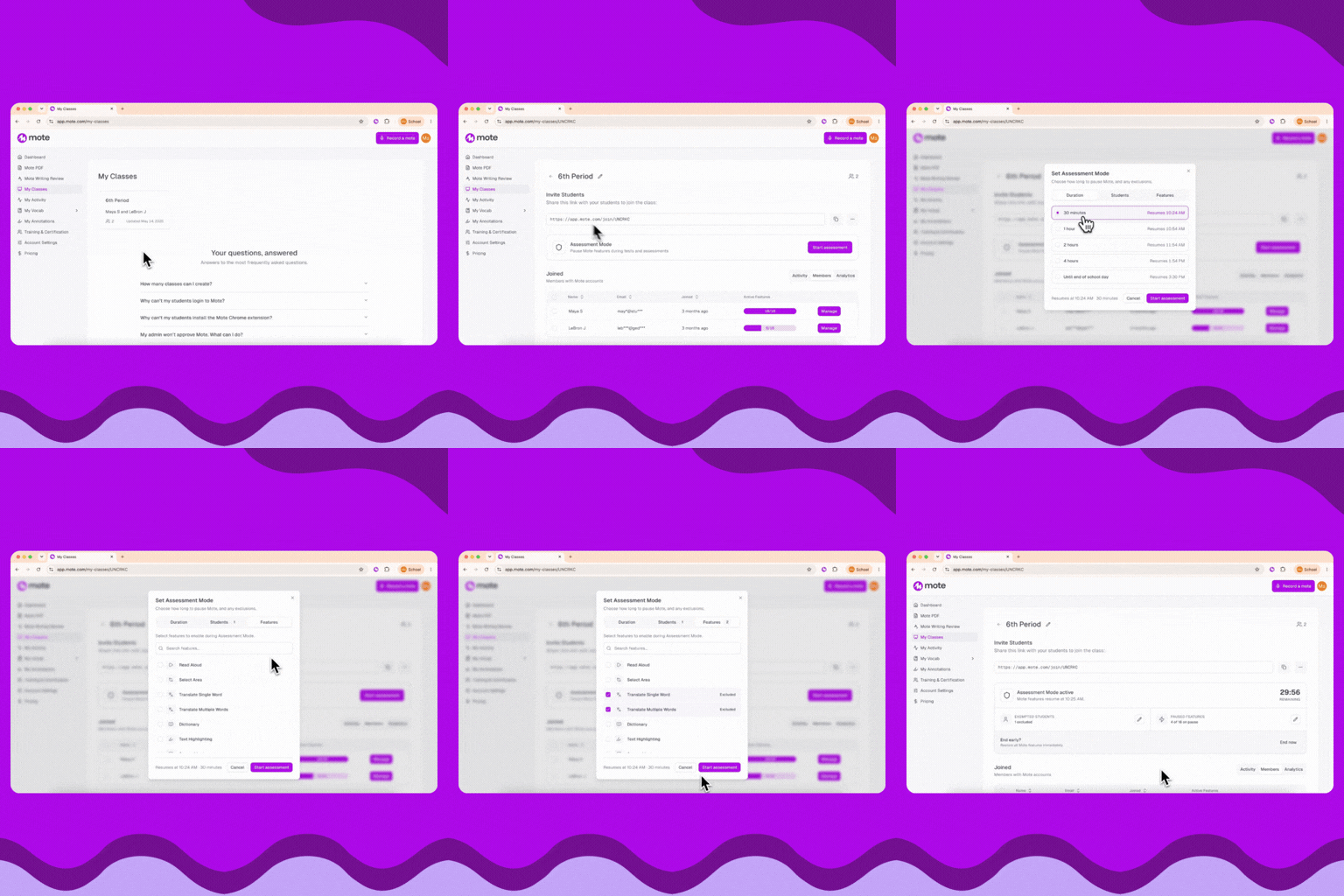
Assessment Mode pauses Mote’s features for a class while a test or a focused activity is running. Choose how long — 30 minutes, an hour, or through to the end of the day — and choose which features to pause. Then apply it to the whole class, or to everyone except the students whose IEP requires Mote.

Try it now:

  1. Go to My Classes and pick a class
  2. Click Start assessment
  3. Choose how long it should last
  4. Choose which features to pause
  5. Choose which students it applies to
  6. Click Start
Admins Control What Students Get, and What Teachers Can Change
Feature access lets you set Mote up for the whole school at once. Each feature can be on, off for everyone, or off by default so a teacher decides for their own class.
Admins Control What Students Get, and What Teachers Can Change

Feature Access sits under My School: choose which Mote features are available to students across your school, rather than setting them class by class. Each feature has three states — On, Off for all, and Off by default, which leaves the decision with the teacher rather than taking it away. When something is unavailable, students are told why, and teachers see which admin set it.

Try it now:

  1. Go to your Mote dashboard and open My School
  2. Open Feature Access
  3. Search for a feature
  4. Set it to On, Off by default, or Off for all
  5. Click Save changes
Prueba Mote gratis

No se requiere tarjeta

© Mote Technologies, Inc. 2026. Creado con 💜 por nuestro equipo global.