Text to Speech in Google Docs
Add natural AI voices, text highlighting, and reading support to any Google Doc with one click.
Find out more about
text to speech
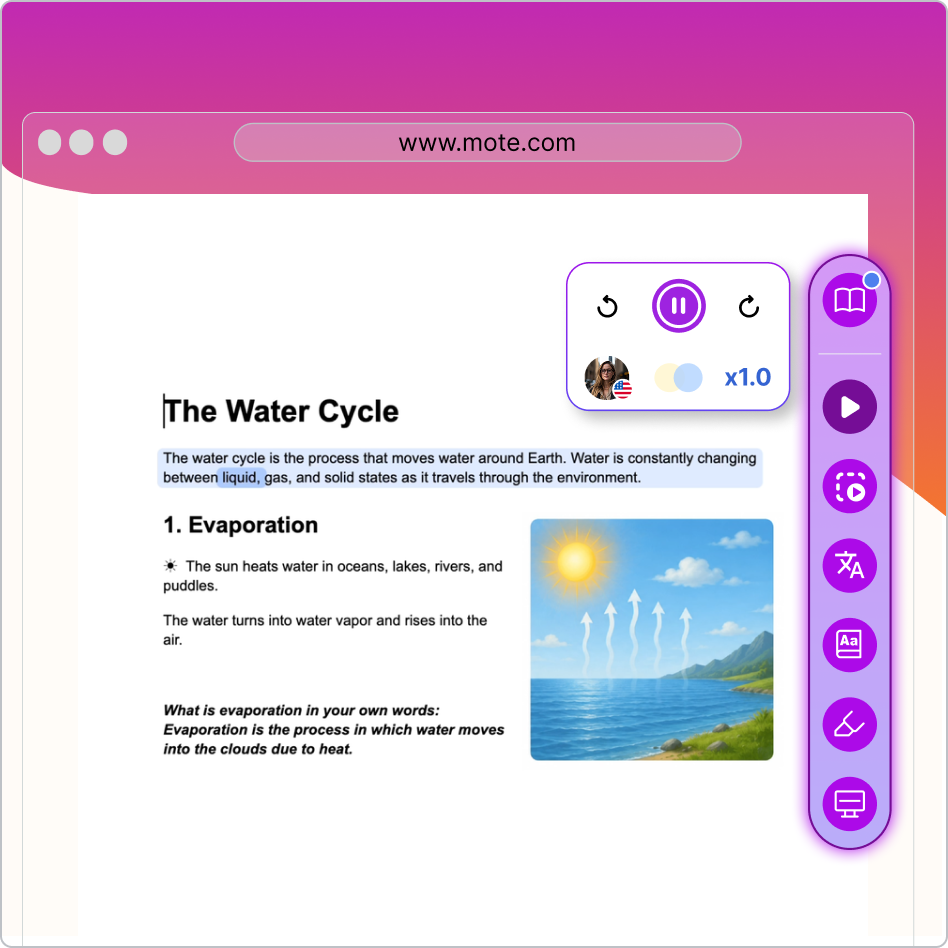



Add natural AI voices, text highlighting, and reading support to any Google Doc with one click.
March 20, 2026
Text to speech in Google Docs gives students a way to listen to assignments read aloud -- a core accommodation recommended by the National Center on Accessible Educational Materials. Google Docs added a native audio feature in 2025 (Tools > Audio > Listen to this tab), but it is English-only, desktop-only, and lacks reading tools like word highlighting or screen masking. For the 5.3 million English Language Learners and 7.5 million students receiving special education services in U.S. schools, Chrome extensions like Mote fill the gap with natural AI voices in 60+ languages, text highlighting, and a complete accessibility sidebar inside any Google Doc.

Neural voice synthesis across 60+ languages keeps students focused on content with voices that sound clear and expressive, not robotic.
Activates directly inside Google Docs through the moteSidebar. No copying text to external apps or switching between tabs.

Text highlighting follows the spoken words so students can track what they hear, building the connection between written and spoken language.

Reduces visual clutter by dimming everything except the line being read, helping students with attention challenges stay on track.

Students can look up unfamiliar words or translate content without leaving the document, supporting vocabulary building and ELL access.

Educators get a free trial of the full Mote Sidebar - Read Aloud, Translation, Highlighter, Screen Mask, Dictionary, and Speech-to-Text. Students invited to a teacher's class get a 90-day trial. After the trial, schools continue on a school or district plan.
Open the Chrome Web Store, search for "Mote", and click "Add to Chrome". For school-wide deployment, IT administrators can force-install via Google Admin Console.
Navigate to any Google Doc -- a class assignment in Google Classroom, a shared document, or your own writing. The moteSidebar appears on the right side of the screen.
Click the moteSidebar and choose from natural AI voices across 60+ languages. Adjust playback speed to match your reading level or preference.
Select the text you want to hear and click the Read Aloud button. The text highlighter follows along as the voice reads, helping students connect written words with spoken audio.
Enable the screen mask to reduce visual distractions and use the built-in dictionary to look up unfamiliar words without leaving the document.
We tested four ways to add text-to-speech to Google Docs -- the native built-in feature, two leading Chrome extensions, and Mote -- evaluating each for voice quality, language support, reading tools, and depth of Google Docs integration.
For K-12 classrooms running Google Workspace, Mote is the strongest choice for text to speech in Google Docs. It is the only option combining read-aloud with a text highlighter, screen mask, dictionary, translation, and text prediction in a single native sidebar, with verified FERPA, COPPA, and GDPR compliance. Google Docs now includes basic native audio playback, but it is English-only with no reading support tools. Read&Write from Texthelp offers a broad assistive technology suite if your district needs enterprise-scale AT across multiple LMS platforms. But for educators who need multilingual reading support built directly into Google Docs, try Mote free today.
For K-12 classrooms, Mote is the most complete option -- it combines text-to-speech with a text highlighter, screen mask, dictionary, translation, and text prediction (supported in English, Spanish, and French) in a single sidebar that works natively inside Google Docs. Speechify offers premium voice quality for individual users, and Read&Write from Texthelp provides enterprise-level assistive technology for larger deployments.
Google Docs' built-in text-to-speech is free but limited to English and select regions. Mote offers free core Read Aloud and accessibility features for all educators and students with no trial countdown. Premium features like advanced AI voices and classroom translation are available through paid school and district plans.
Google Docs includes a built-in text-to-speech feature under Tools > Audio > Listen to this tab. However, it is limited to English, available only in select regions, and works only on desktop with no text highlighting or speed customization. For broader language support and reading tools, Chrome extensions like Mote provide text-to-speech with 60+ languages and features like text highlighting directly inside Google Docs.
The quickest way is to install a text-to-speech Chrome extension like Mote. Once installed, open any Google Doc, highlight the text you want to hear, and click the Read Aloud button in the sidebar. You can choose from natural AI voices in 60+ languages and adjust playback speed to suit your reading level.
Yes. Google Docs' built-in TTS works on Chromebooks but is limited to English and select regions. Chrome extensions like Mote add full text-to-speech with 60+ languages on any Chromebook. For school-managed devices, administrators can deploy Mote across all Chromebooks through Google Admin Console.

.png)
.png)

.png)