


Install Mote PDF on your computer and open any PDF straight into it, the same way you'd open a file in any other app.
Try it now:

The eraser in Mote PDF now removes only the part of a line you drag it across, in three sizes.
Try it now:

Open the .notebook files from your SMART Board in Mote PDF, straight from Google Drive or your computer, and turn them into PDFs your students can use.
Try it now:

Any teacher can now use Mote Translator, on any Mote plan. Try it with a free hour, then buy more hours as you need them, starting at 5 hours for $10. Use it to translate a lesson live for a room of students, or to talk with a parent on one device, each of you in your own language.
Try it now:
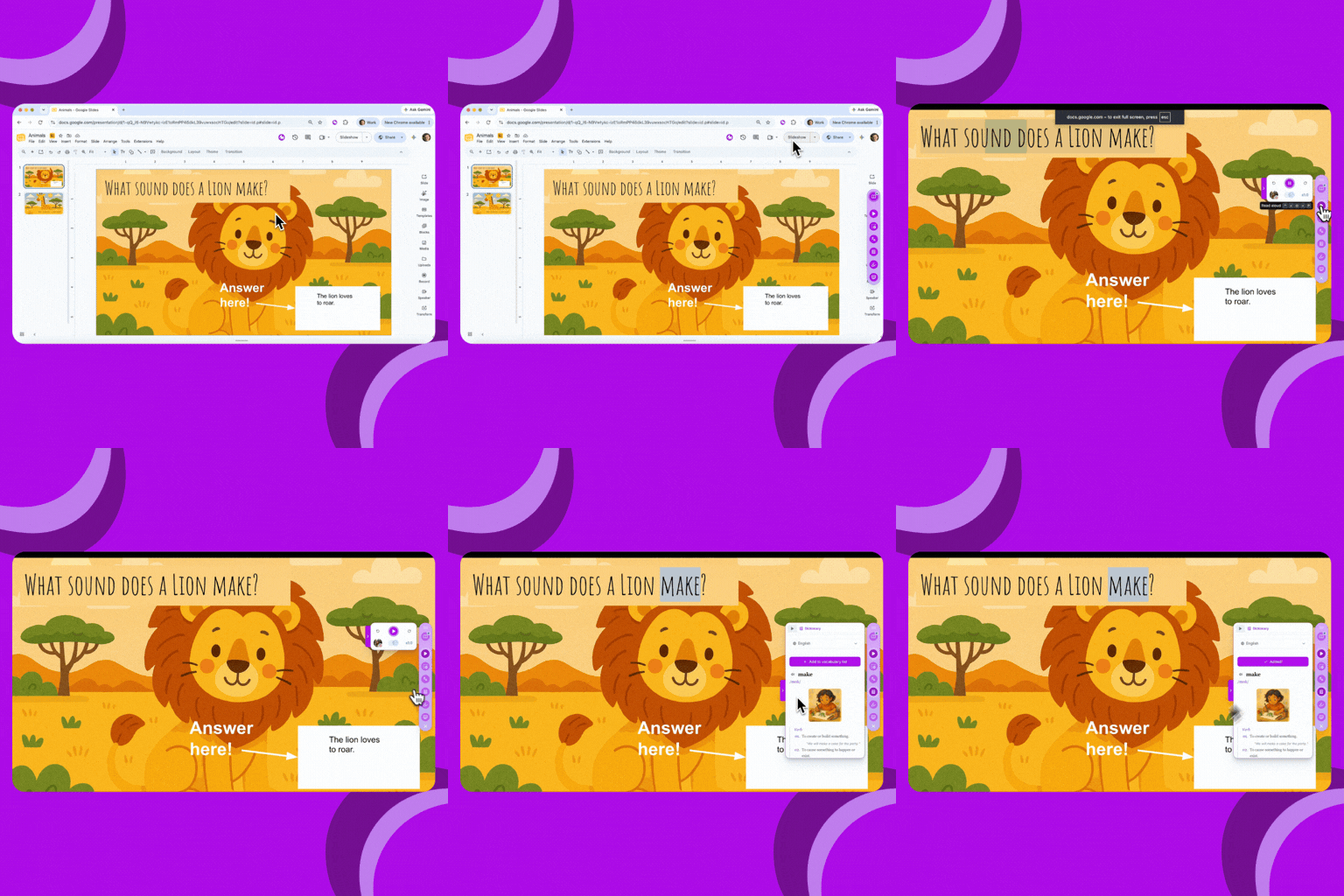
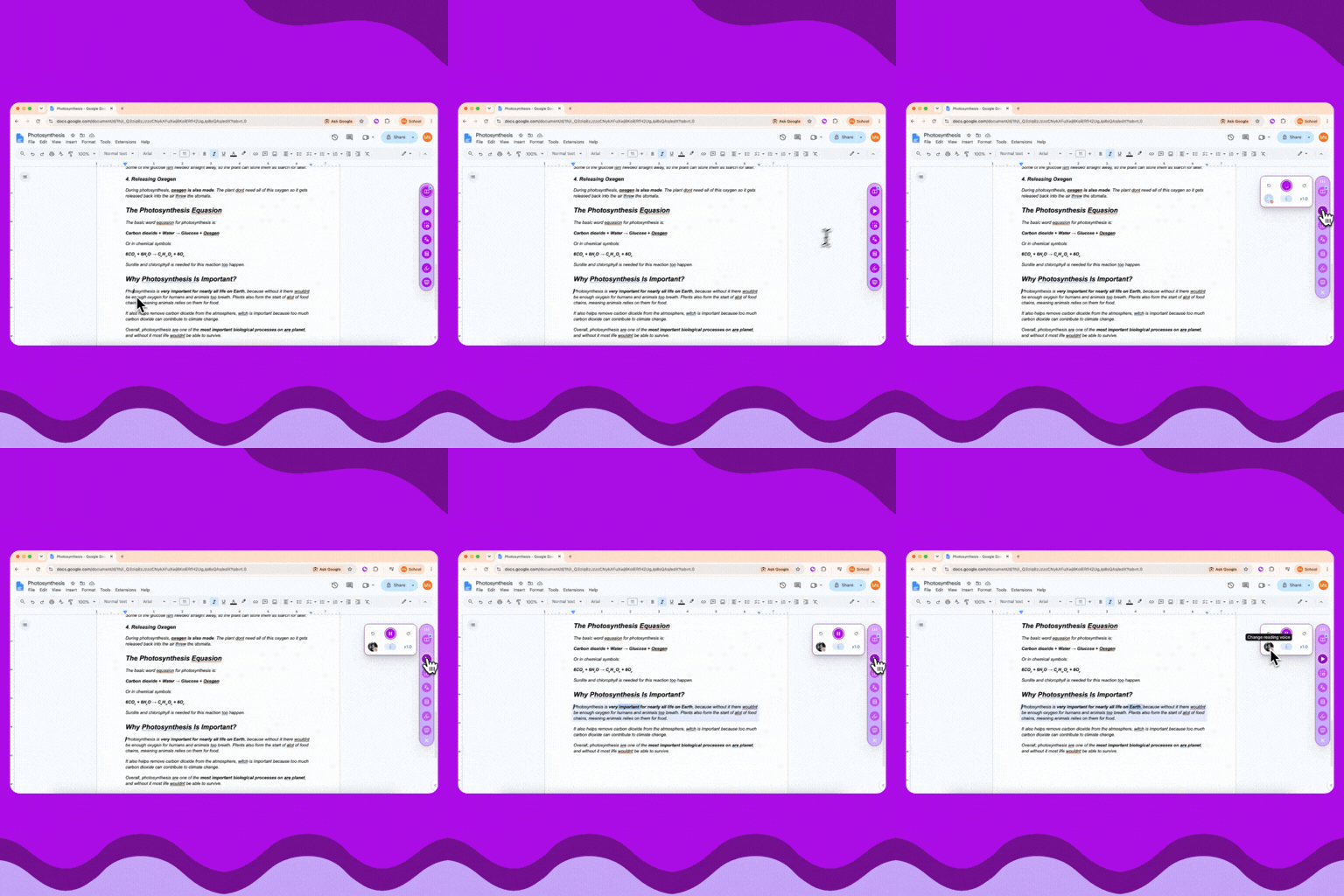
Mote Sidebar tools now work while you present in Google Slides, so you can use them with your class without leaving the slideshow. Press Play Page to hear the slide read aloud, with each word highlighted as it's read, or look up a word in the Dictionary.
Try it now:
Use Mote Sidebar tools while you present a Google Slides deck to your class, like hearing a slide read aloud or looking up a word.
Use the Mote Sidebar While You Present in Google Slides
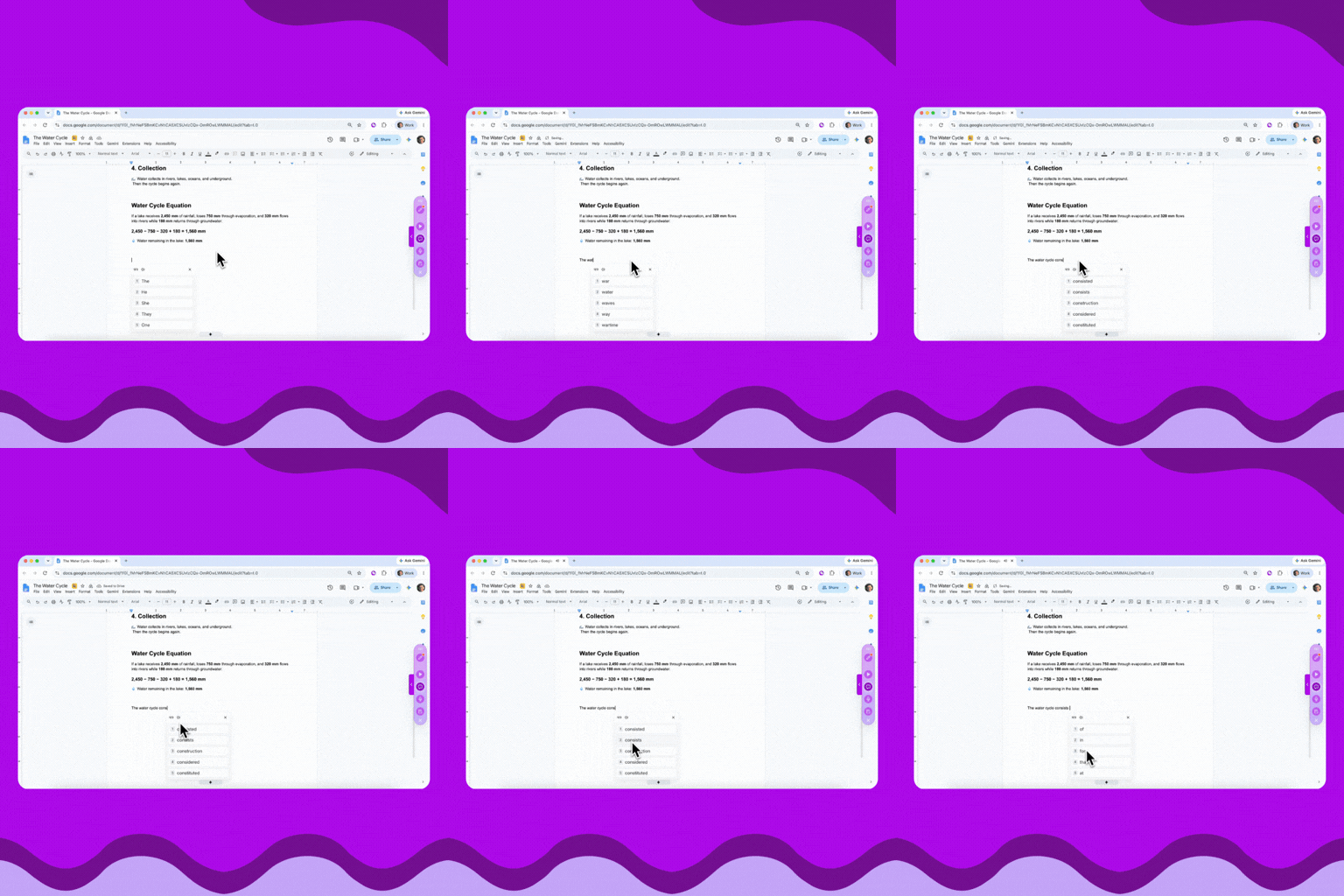
Students can now hear a Text Prediction suggestion before they choose it. Hover over a suggestion, or tab to it with the keyboard, and Mote reads it aloud.
Try it now:
Hover your cursor on a Text Prediction suggestion and listen to it read aloud.
Hover and Listen to Text Prediction
.gif)
Adjustable Text Boxes, in MotePDF

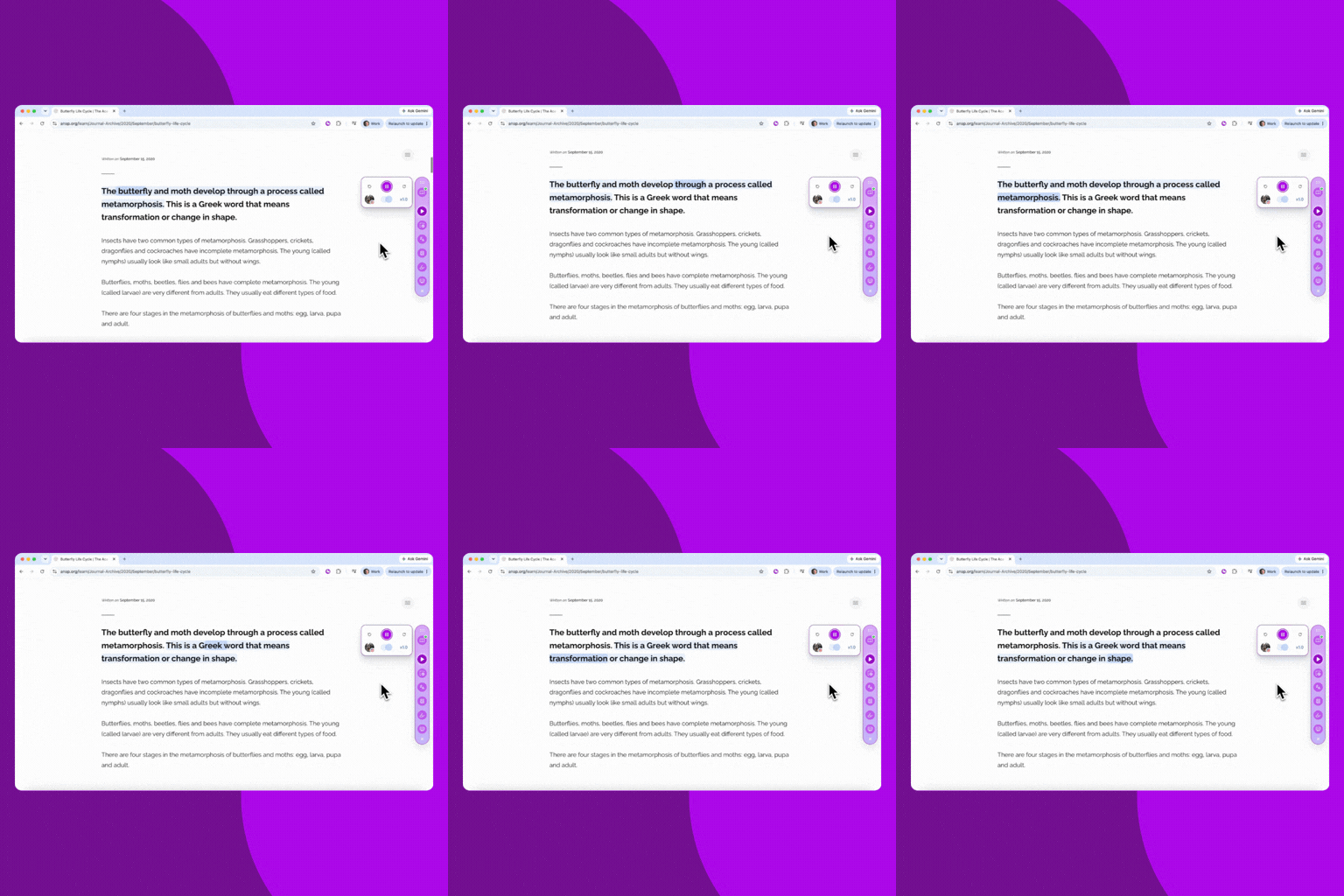
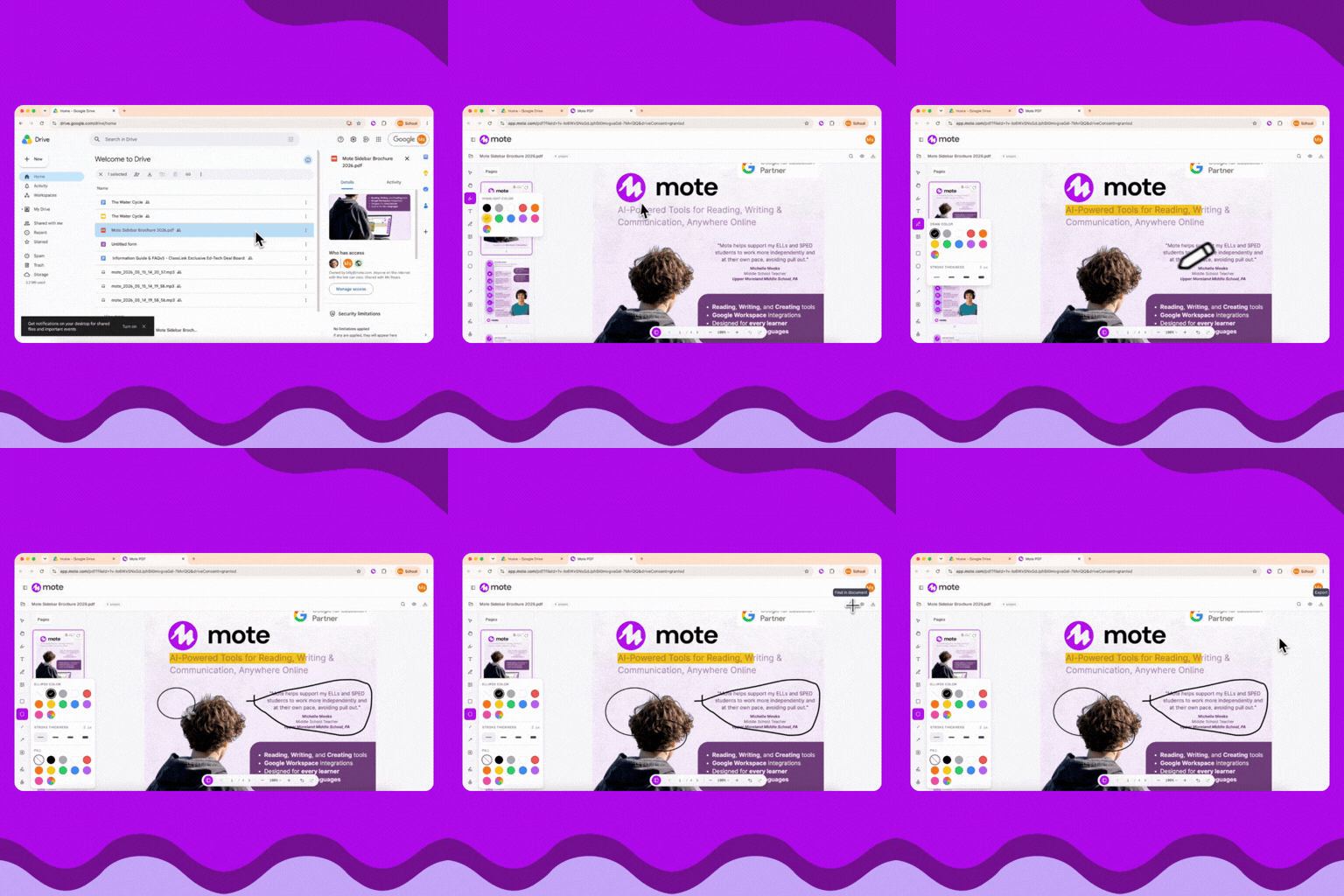
Text boxes in Mote PDF now resize, with six font sizes to choose from, so answers fit the space on the worksheet. Try it now:





.gif)
The Mote Sidebar and Platform now display in your language of choice: English, French, Spanish, Arabic, or Mandarin Chinese.
Try it now:
This feature is currently in beta. If you notice any translation errors or inconsistencies, please share your feedback so we can continue improving the experience.
The Mote Sidebar and Platform now support English, French, Spanish, Arabic, and Mandarin Chinese. All elements, buttons, and prompts appear in your selected language.
Mote Speaks Your Language
.gif)
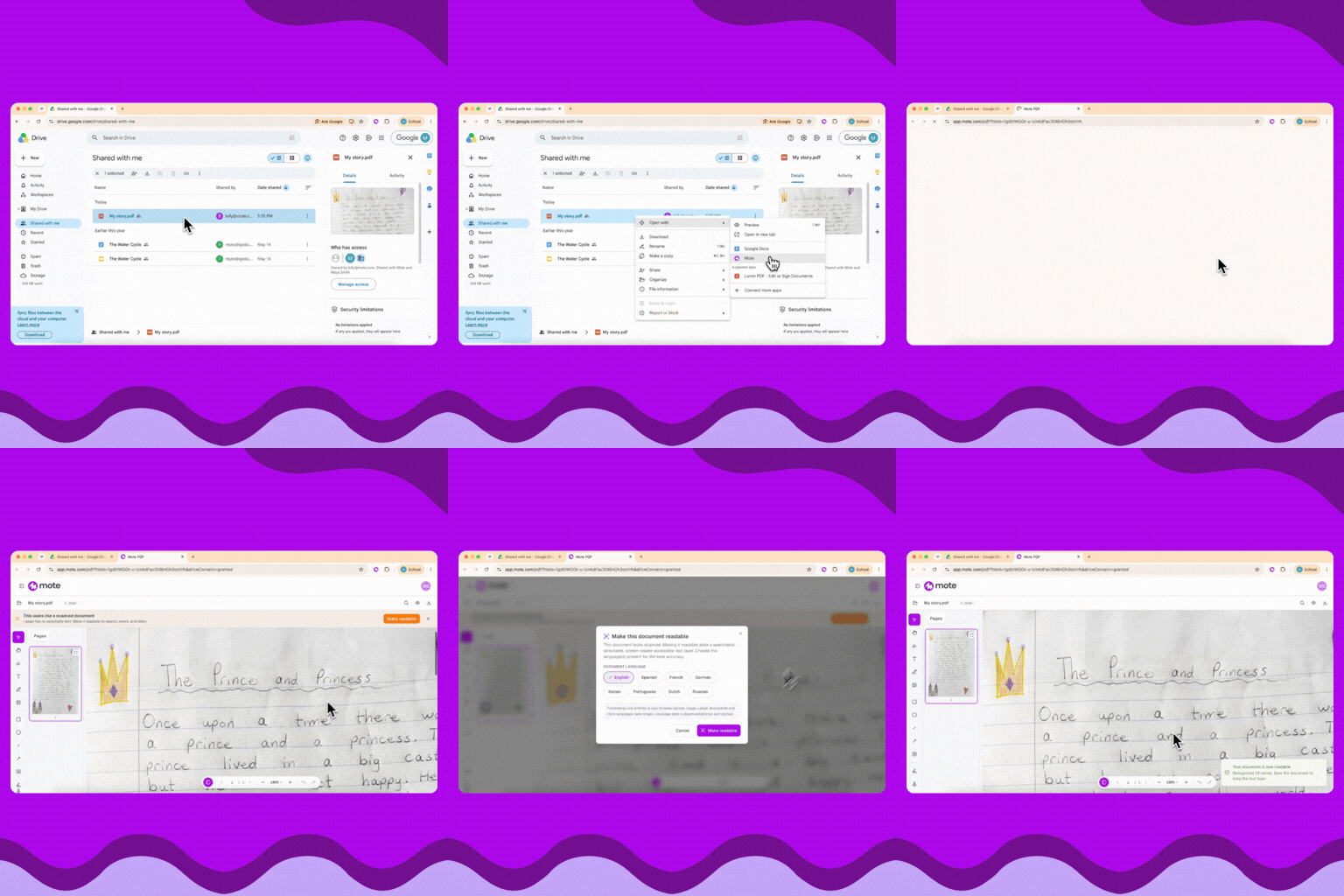
MotePDF hosts PDF files so all of Mote's accessibility features work inside them. Students get Play Page, Dictionary, Speech-to-text, and annotation tools on any PDF — even ones that were inaccessible before. Try it yourself:
You can also send any PDF URL to Mote by opening the Sidebar and clicking Read & Edit in Mote PDF. Works with most text-based PDFs.
Mote-ify Your PDFs
Any PDF can now be opened in MotePDF, giving students access to all of Mote's features along with annotation tools on materials that were previously inaccessible.
.gif)
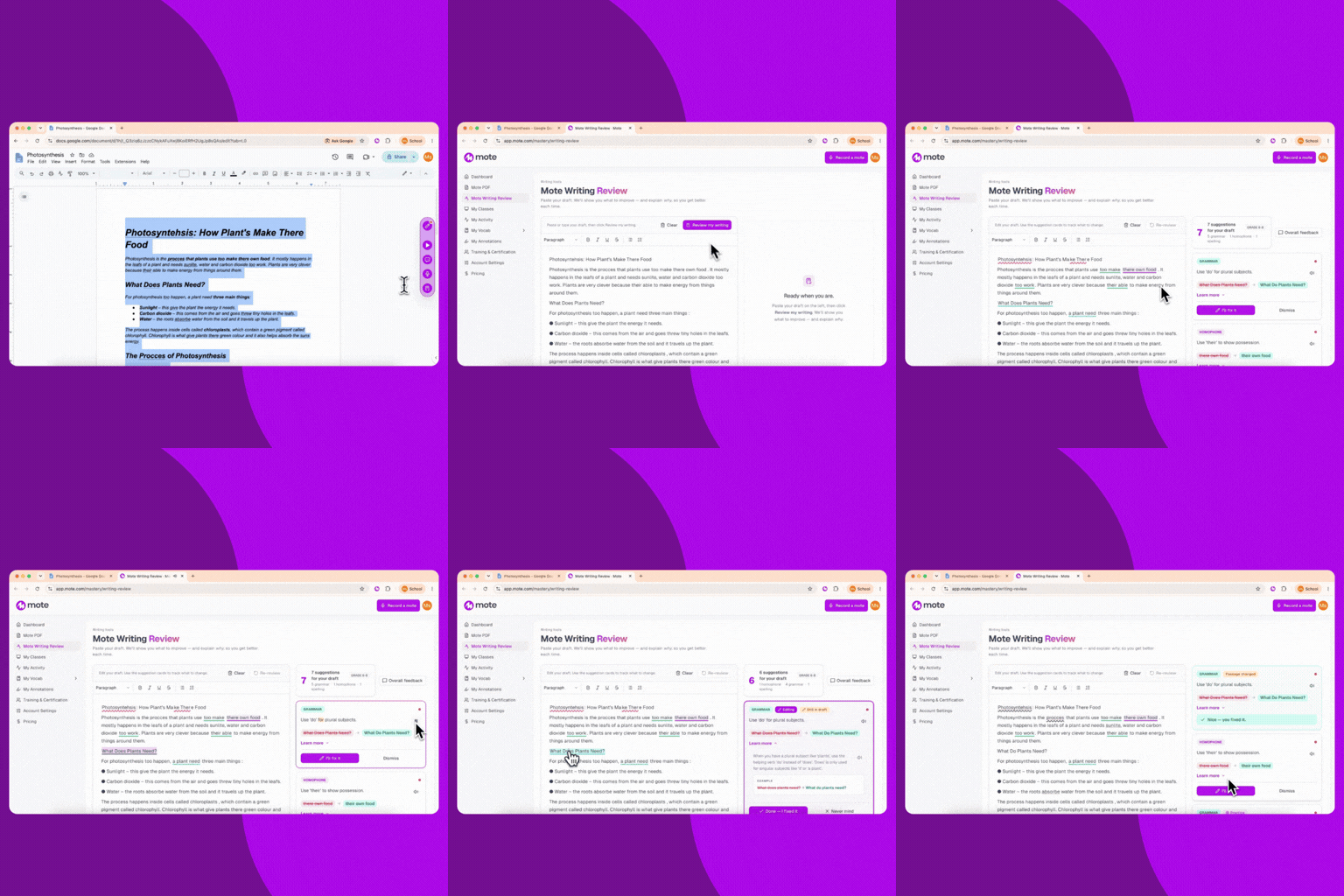
Their, There, or They're? Review your Writing with Mote
Writing Review checks student's writing for spelling, homophones, and grammar - and provides suggestions with explanations behind each correction.
Writing Review takes student's writing and flags spelling, homophones (their/there/they're), and grammar issues. Each flagged issue provides a suggestion, along with a plain-language explainer that helps students understand the logic, not just accept the red squiggle.
.gif)
Vocabulary Generator now creates word lists in French and Spanish in addition to English. Each word still includes definitions, example sentences, translations, and illustrations.
Try it yourself:
Generate vocabulary lists in French and Spanish now as well as English. Perfect for world language teachers and multilingual classrooms.
.png)
Become a Mote Explorer by making your way through the seven levels of hands-on tasks, teaching you Mote features as you go. After completing each level, you’ll receive a Syd pin — and you’ll unlock your Mote Explorer pin when you complete all seven levels.
Try it yourself:
You don't need to finish all levels in one session — your progress is saved automatically, so you can come back anytime.
Learn how to use Mote's features through a new 7-level game that turns getting started into an exploration.
.gif)
Topic lists for text prediction lets you add context to your writing, so suggestions are more specific and relevant.
Try it yourself:
Select from your vocabulary lists to give text prediction greater context, prioritizing specific terminology as students write.
Give Your Text Prediction Some Context
.gif)
Focus Mode strips away ads, sidebars, and visual chaos from most article-style webpages, creating a clean reading environment. It's available when the green dot is showing on the Sidebar.
Try it yourself:
Works with Select Area to Read and Highlighter for scaffolded reading support.
Focus Mode removes distractions from webpages, leaving only the content that matters so students can read without the clutter.
Strip the Noise, Keep the Signal
.webp)
Focus mode allows you to remove any unneseary noise, ads, sidebars and visual chaos from webpages, creating a simple and easy to navigate page.
Try it yourself:
Remove distractions from webpages and make them easier to navigate and read with Focus Mode.
Distraction Free, Focus with Mote
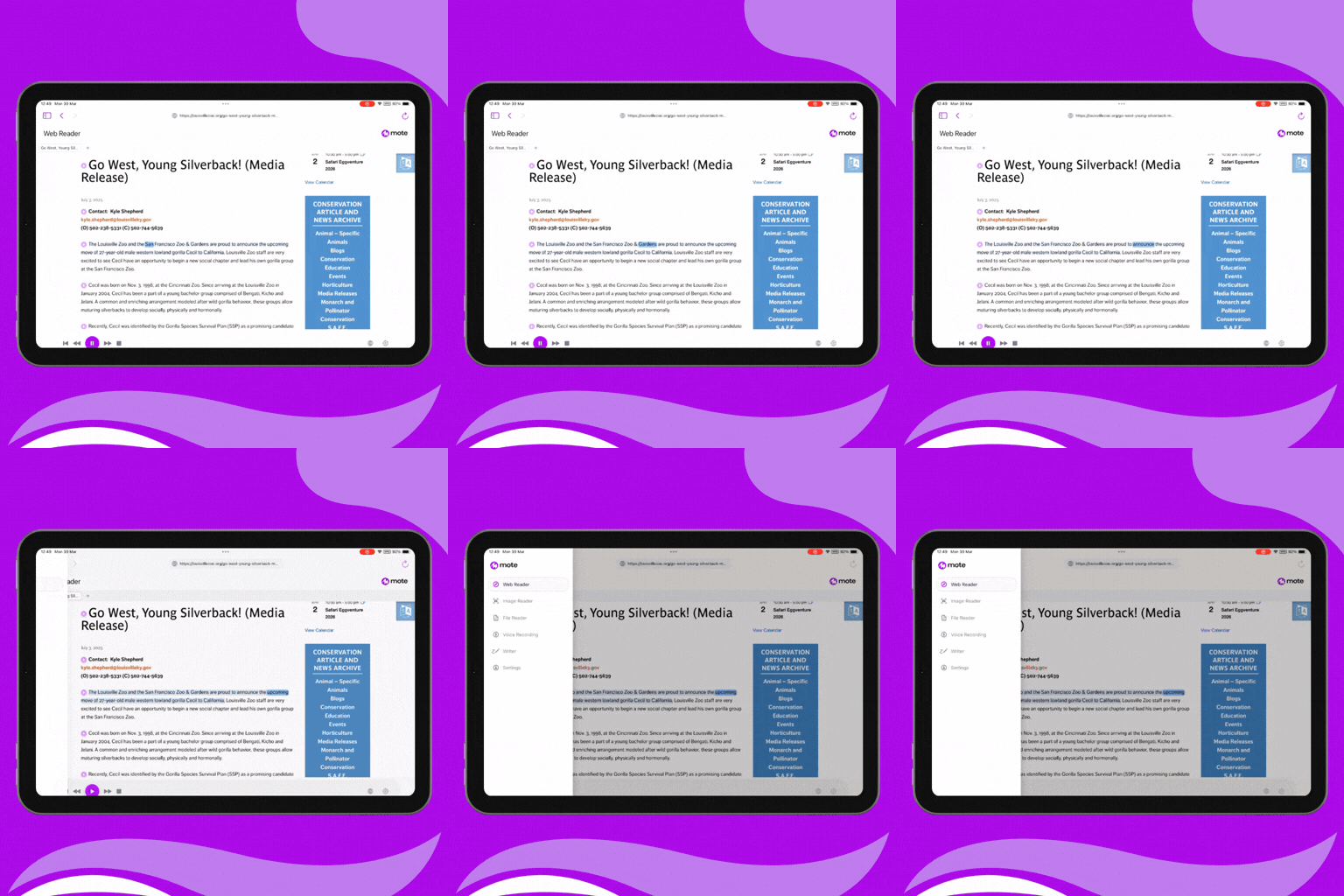
iOS App Gets Beta
Mote now has an improved iOS app in beta with a powerful suite of new features. You can now access web reader, image reader, file reader, voice recording, and writer capabilities—all from your iPad.
We're inviting teachers to test these features and give us feedback. If you're ready to explore the app, then:
.gif)
We’re Flipping the Script (and the Sidebar) on Accessibility
You can switch between vertical and horizontal Sidebar layouts whenever you want a change. Keep an eye out for some silky-smooth animations as you flip the script.
You can switch between vertical and horizontal Sidebar layouts whenever you want a change. Keep an eye out for some silky-smooth animations as you flip the script. Try it out:
And there’s some good news if you’re not a fan of our super cool transitions. Animations can be disabled by:
Sidebar
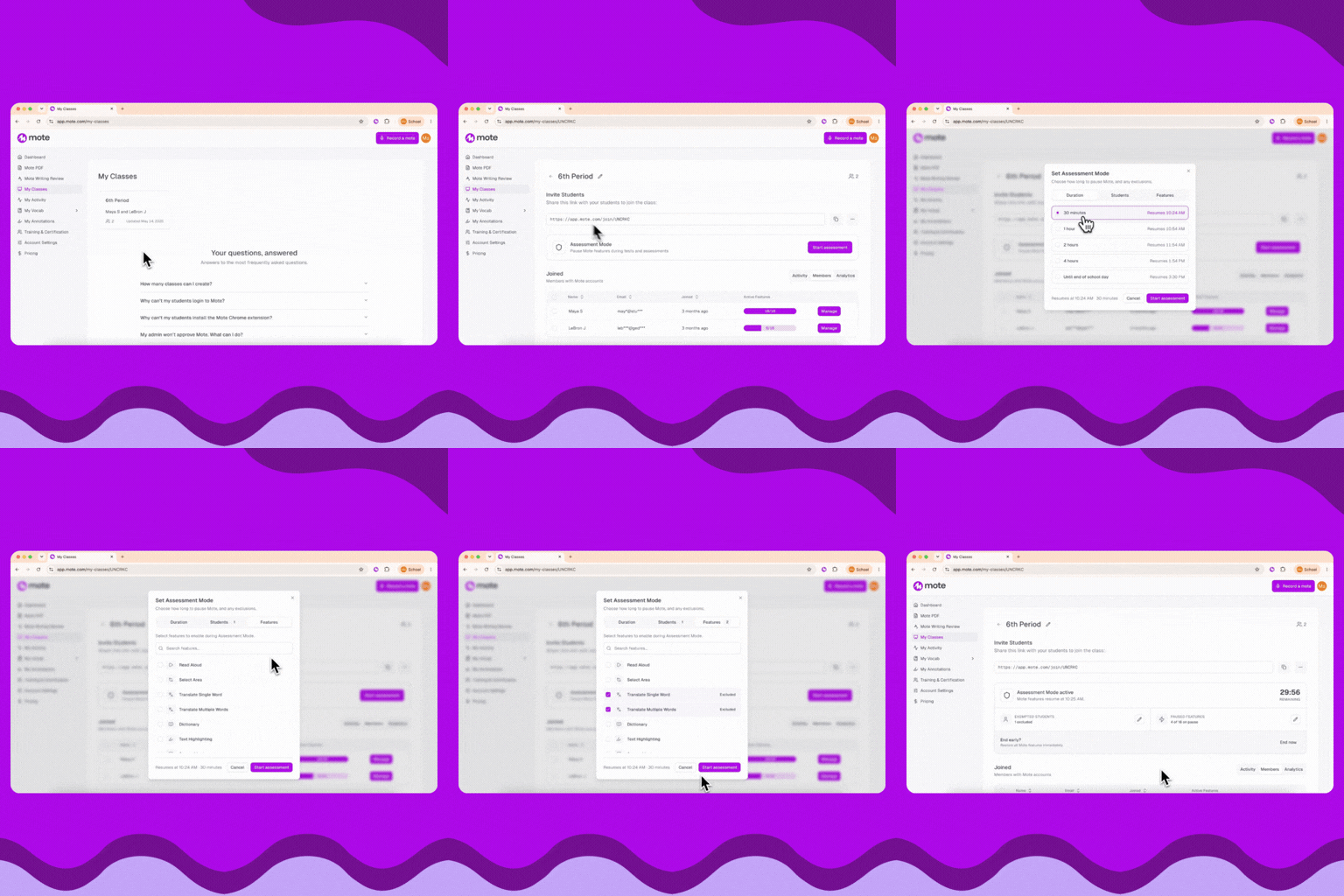
Admin experience
.gif)
Maximized or Minimized? You Choose
The Mote sidebar can now be minimized, giving you full control over how much screen space it takes up. Click to minimize when not in use, or maximize to continue using the features. Try it now:
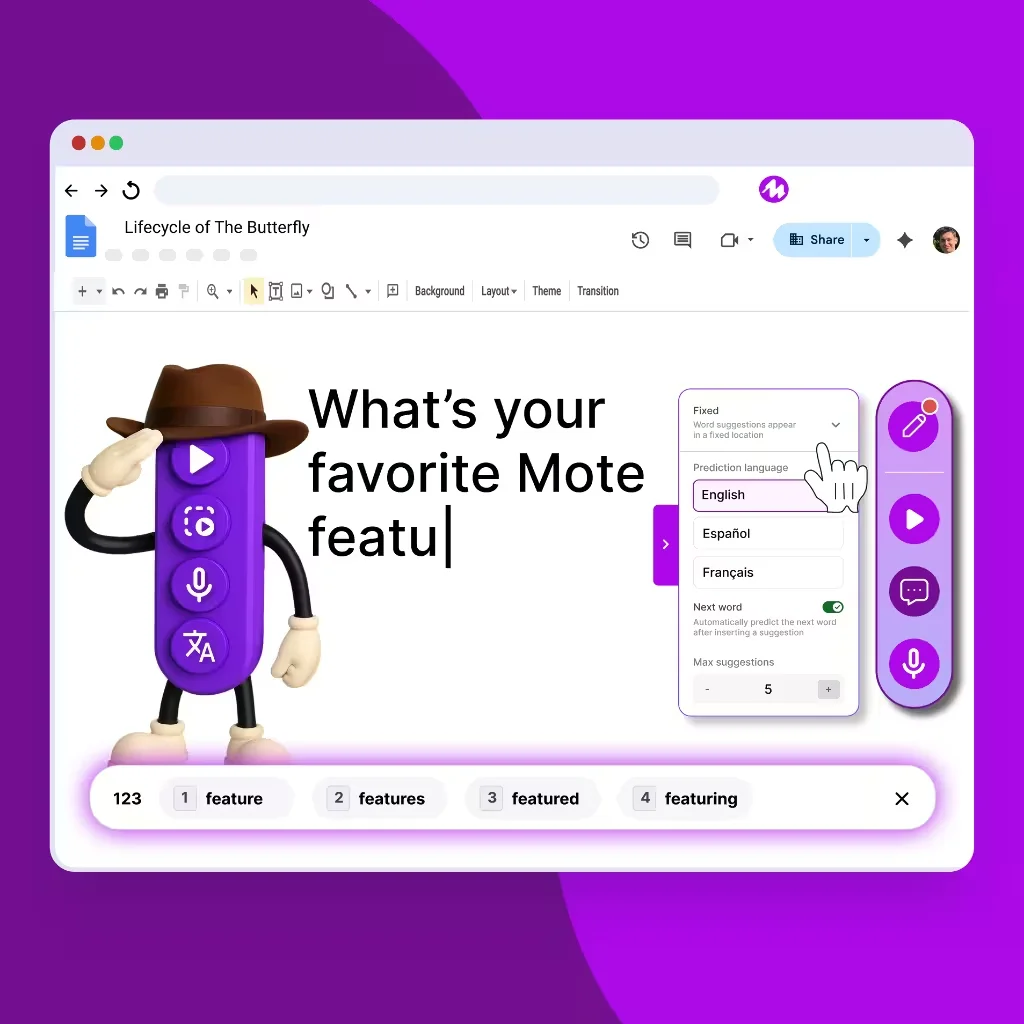
Choose Your Mode: Fixed or Follow?
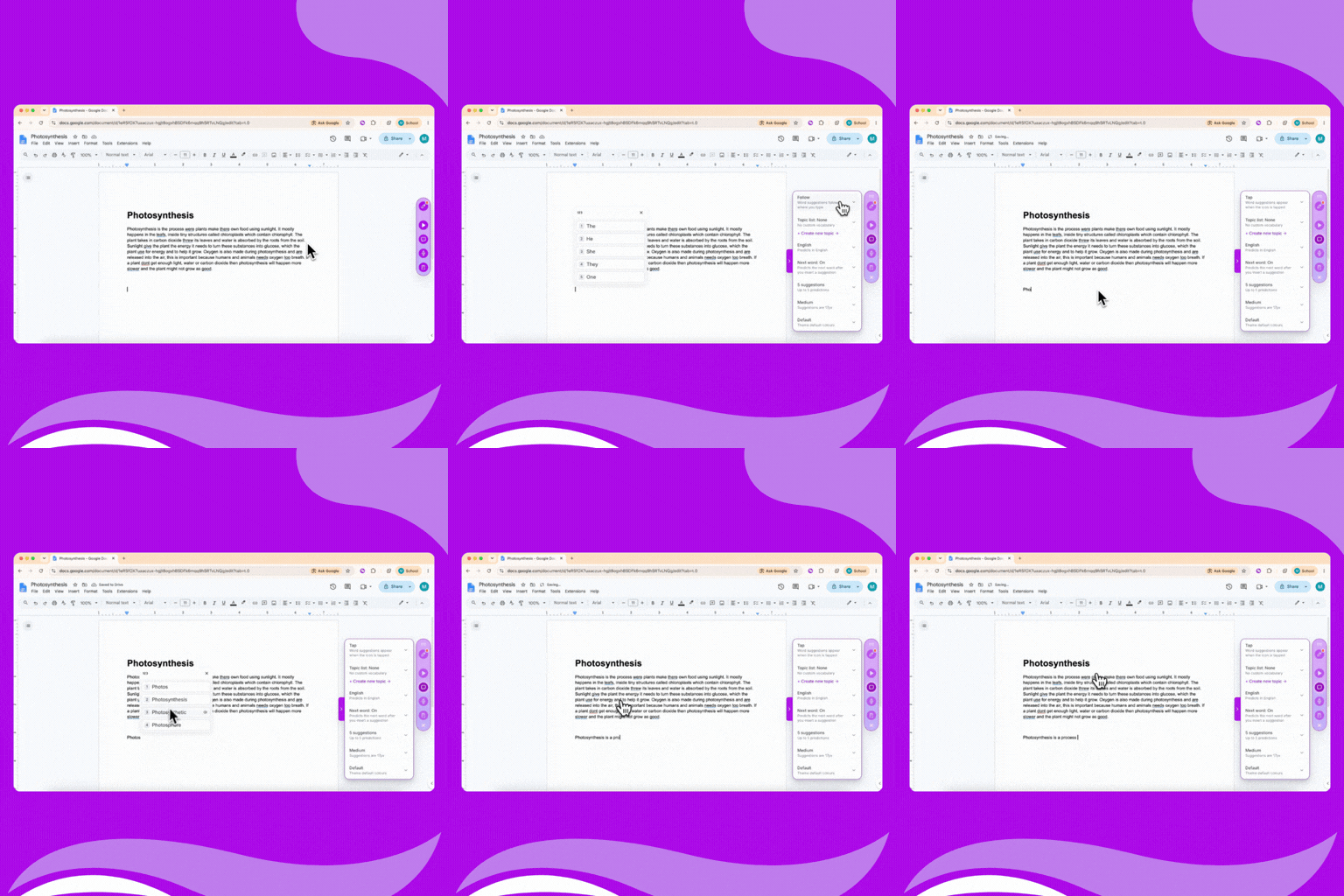
Text prediction now offers two display modes to suit your writing style. Choose Follow mode for suggestions that appear right where you're typing, or Fixed mode for a clean horizontal toolbar at the bottom of your screen. Try it now:

Text prediction now lets you customize how many suggestions you see while typing. Simply toggle between 1-10 maximum suggestions to find the perfect balance for your writing flow and reduce visual clutter. Try it now:
Take Control of Your Word Suggestions
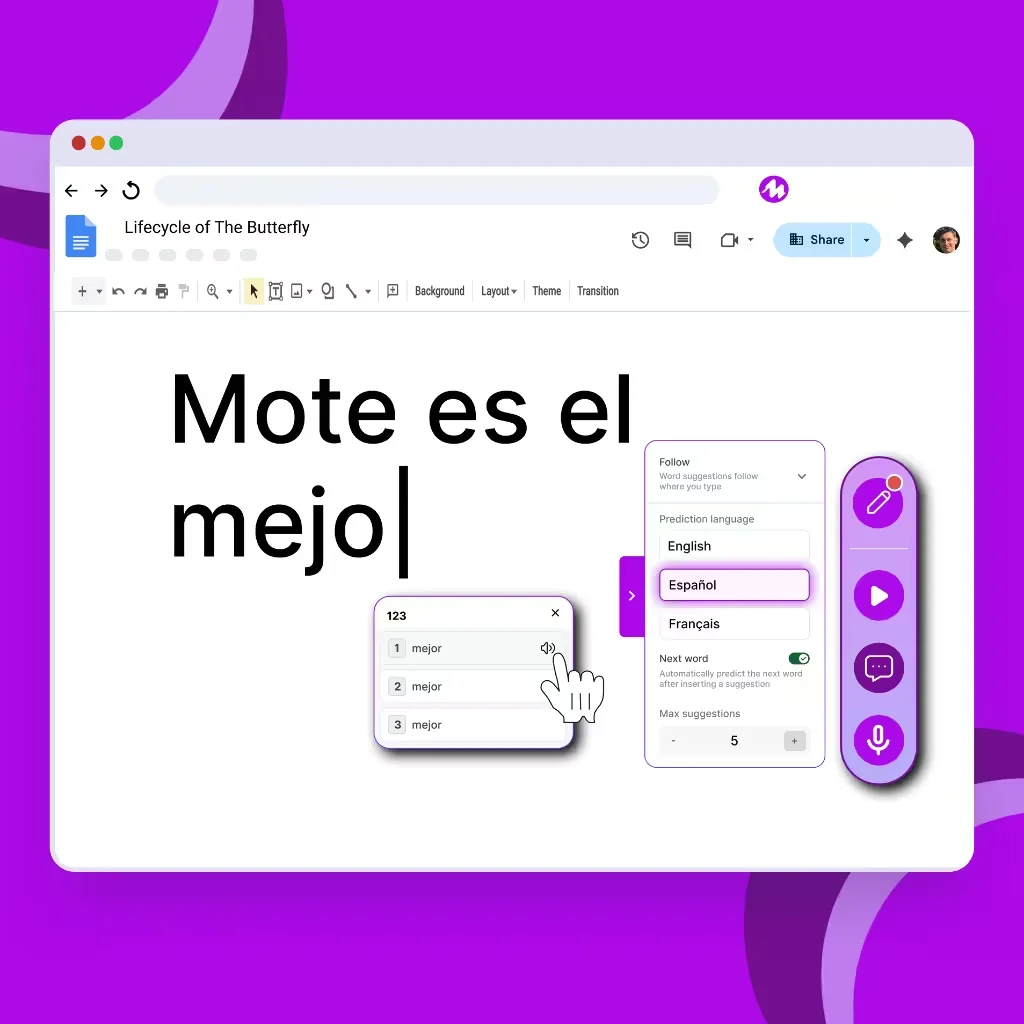
Text prediction now supports Spanish, joining French and English. Spanish speakers now also benefit from real-time suggestions that understand phonetic spelling, context, and grammar. Try it now:
¿Hablas español? Text Prediction Now Does

Say Bonjour to French Text Prediction
Text prediction now supports French. Students benefit from real-time suggestions that understand phonetic spelling, context, and grammar.
Try it now:
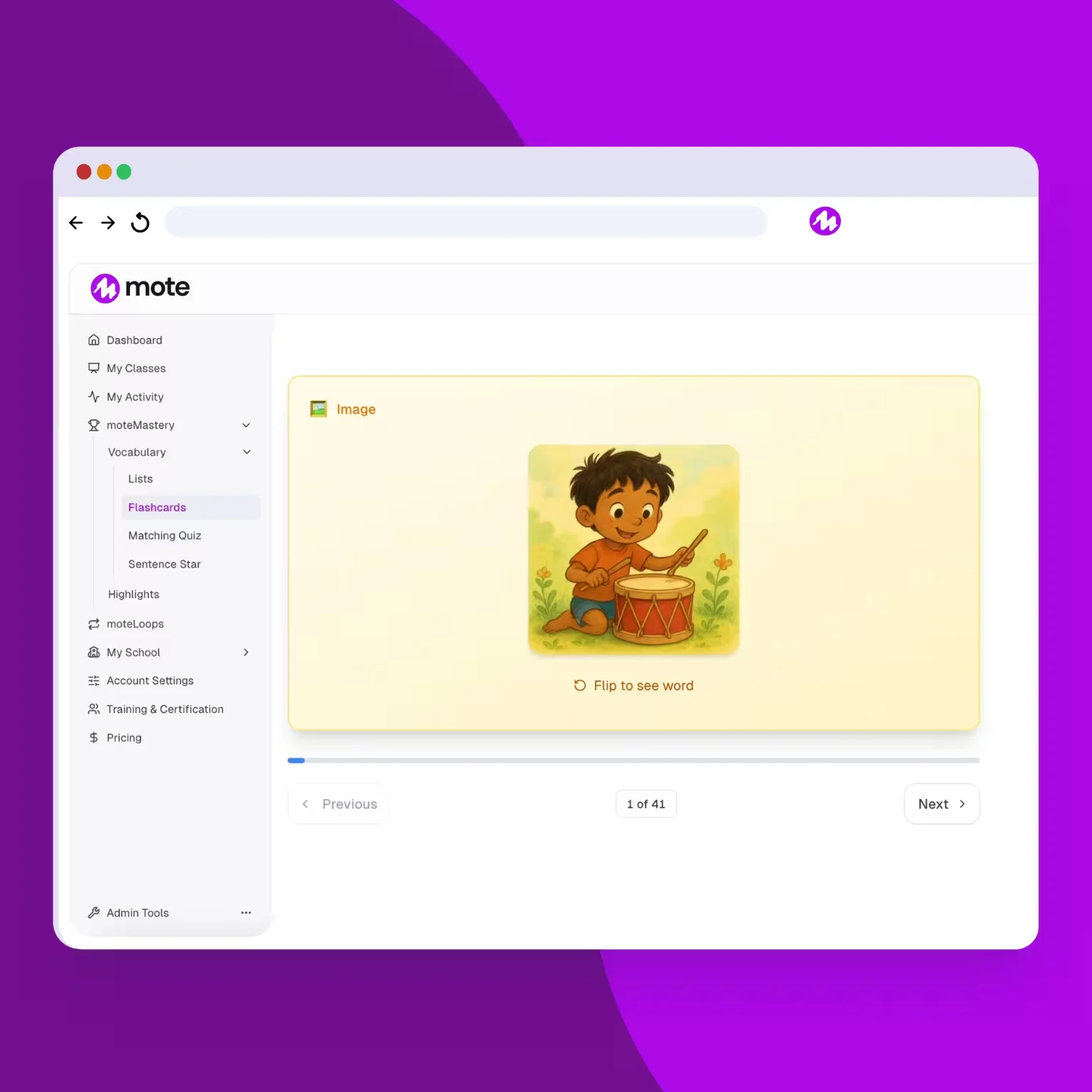
Flashcards now have image mode, testing vocabulary through pictures. Try it now:
There's a new way to master your word lists. Flashcards display a picture on the front of your flashcard. Flipping the card shows the word and an example usage.
Flashcards Get a Visual Update
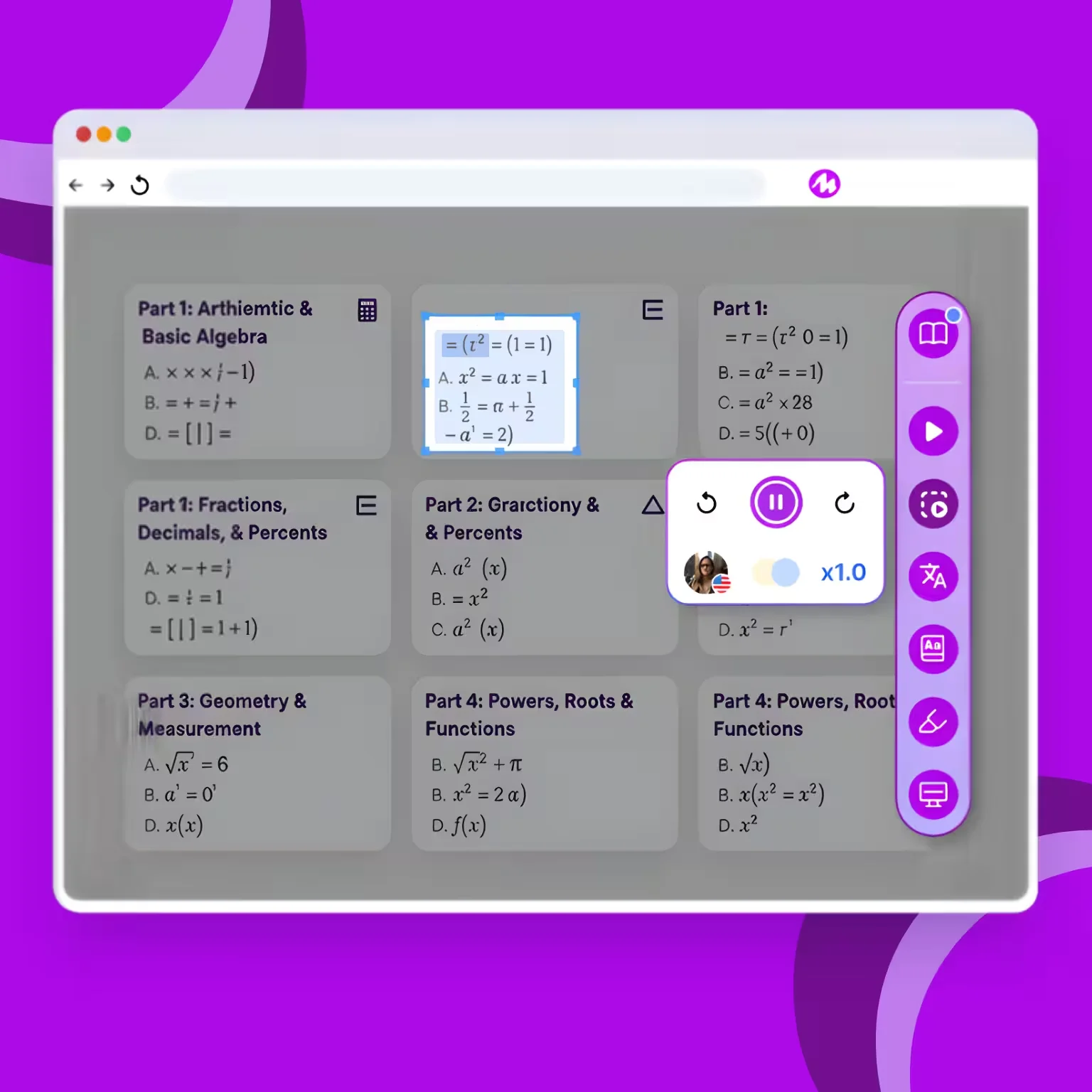
Enigma Code Broken: Mote Solves the Impossible Mystery of Mathematical Speech!
Read Aloud now has improved equation handling. ‘Select area to read’ returns accurate speech for mathematical equations. Try it below by:
Sidebar
Select Area to Read
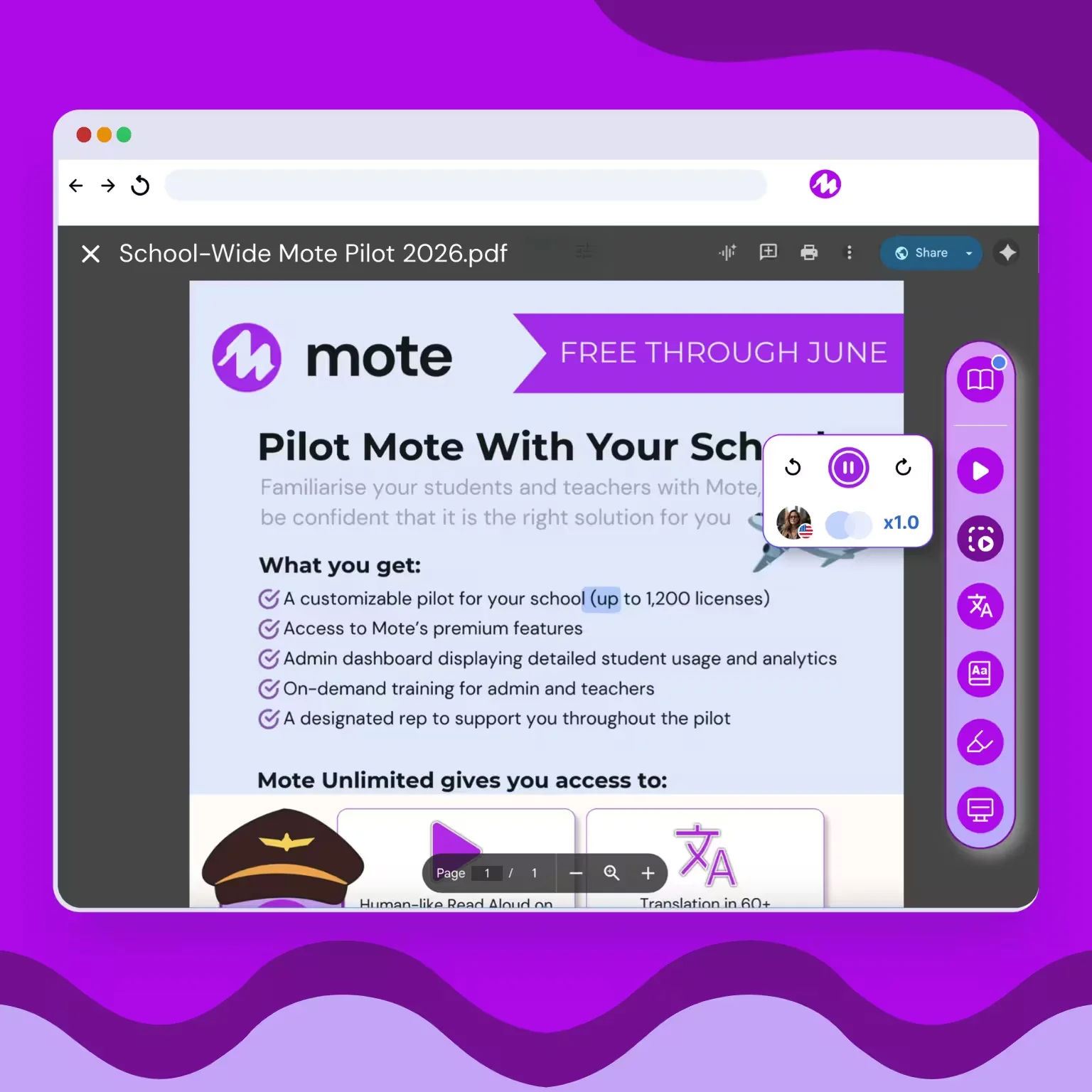
Students can now just ‘Play page’ to read aloud PDFs on Google Drive
Play Page scans and reads the entire page for you, so you don’t need to drag and select. Dictionary support also allows you to select and define any new or complex words.
Try it now:
Note - this works with most PDFs but not with all scanned documents. Watch this space for a more comprehensive solution coming soon!
PDF Read Aloud
Sidebar
Dictionary
Multilingual Dictionary
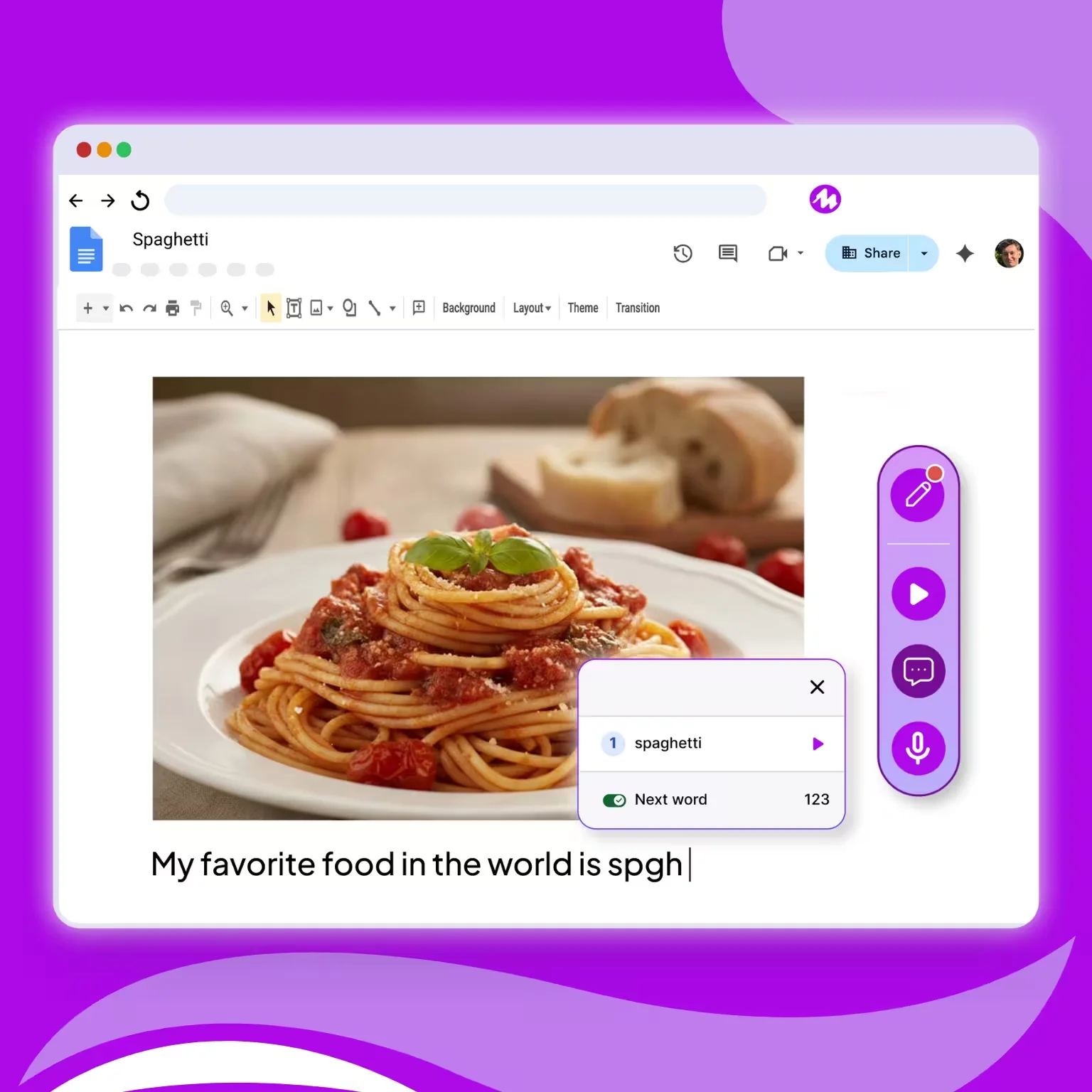
Mote text prediction has been updated with robust phonic spelling and improved grammatical support including:
Try it now:
Mote text prediction has been updated with robust phonic spelling and improved grammatical support.
You’re so predictable, with Mote
Text Prediction

Select Area to Read now reads and translates in over 60 languages. Transform text to speech in Spanish, Arabic, Chinese and more for any image, PDF or graphics.
Try it now:
Sidebar
Select Area to Read

Speech-to-text is now even easier to use, try it with your students by:
Type with your voice in any text field. Drag and drop with ease with the latest update.
Voice typing
Speech-to-text transcription

Personalize your Read Aloud experience with 6 paragraph and word highlighting color options!
Changing your Read Aloud paragraph and word highlighting color is simple:
Read Aloud with Human-Like Voice

Ho Ho Ho! Forecast Predict an Early Motemas!
Bring festive cheer to your classroom with Santa himself! With Read Aloud, you can now narrate with Saint Nick's jolly voice to spread festive magic.
Next time you're using play page, or select area to read - select Santa from the list of voice options:
Now every time you activate Read Aloud, you'll spread some festive joy!
Read Aloud with Human-Like Voice
Image Text Read Aloud
Play Page: Read Aloud
.png)
Students now have an easy and rewarding way to export highlights and vocabulary from any web page. 'Export to Google Docs' creates and populates a new and elegant Doc.
Here's how to use this yourself, or with students:

Text prediction now has even better suggestions - with improved phonetic spelling predictions and greater accuracy:
Out with the old, in with the new: The Text Prediction Revolution is here!

Open up your doors! Fill your class in one click
You can now import a class from Google Classroom in just a few clicks! Try it now on the my classes page.
Adding students to your class is now easier than ever:
That's it! All of your students will be automatically added to the class. You'll see a list of students already using Mote, and a list of students who will be added as soon as they set up their Mote account.
Dashboard
Class enrollment

READ ALOUD ALL ABOUT IT! Mote Gives Sora & Epic a Voice-Lift They’ll Never Forget!
Alongside improved Sora and Epic read aloud integrations, this update includes expandable dictionary images, new highlighter labelling and more!
We’ve made some exciting updates to make your Mote experience smoother and more intuitive to use.
We've improved our read aloud experience in Sora and Epic library apps so your experience is smoother, clearer and more engaging than ever.
We've simplified the highlighter categories so you can instantly change labels without having to click the drop down. Simply select the color you want to use, click the edit button and change the name with no extra clicks.
Our picture dictionary can now expand or shrink, so you can see our beautiful images in greater detail. We've also simplified our integrated read aloud feature so it now reads both the word and its first definition.
Need to take a break from text prediction mode? You can now click close on the pop-over.
Sidebar
Highlighter labels
Dictionary
Read aloud with human-like voice
text prediction

Your Newest Power Couple: Mote and Wakelet
Mote is easier than ever to use in Wakelet with itegrated text prediction and highlighting!
You can now seamlessly use text prediction in any text field within Wakelet. Simply activate text prediction an being typing!
You can now highlight anything within Wakelet, and it'll stay there until you choose to remove it!
Sidebar
text prediction
highlighter
